The Conditional Prefix/Suffix Rules feature allows WooCommerce order numbers to be customized automatically using various condition-based rules. You can assign unique prefixes or suffixes based on condition types such as the product purchased, payment method used, user role, and more.
How to Enable Conditional Prefix/Suffix Rules
To enable the conditional rules, navigate to the section titled “Conditional Prefix/Suffix Rules” and check the box labeled “Enable Rules“. 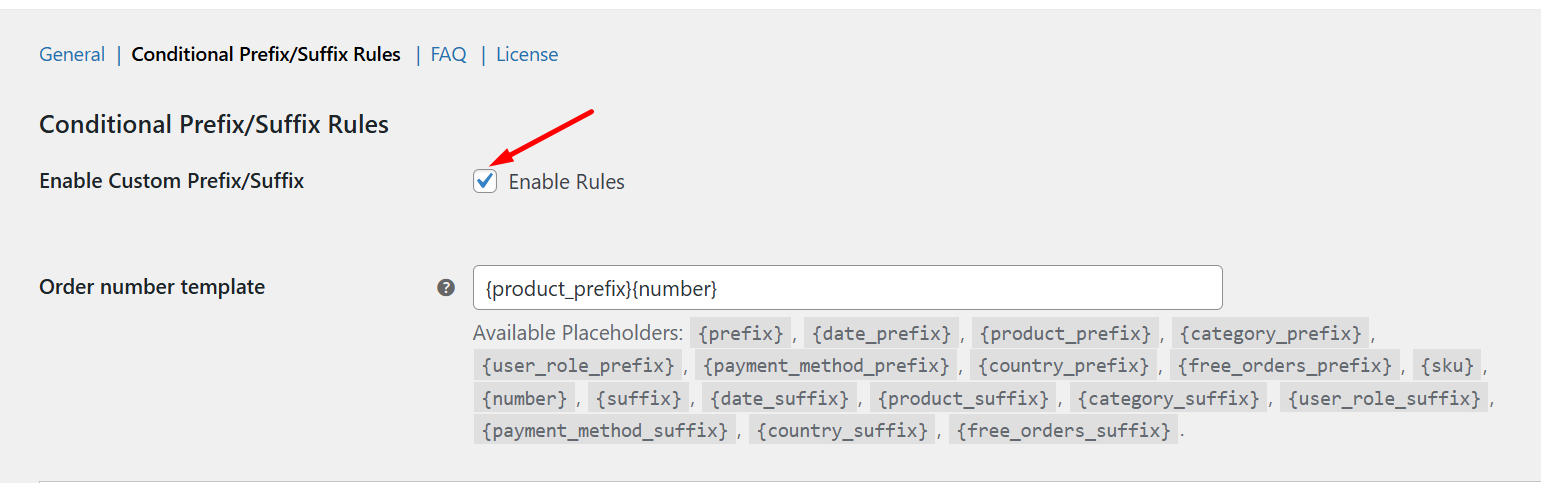
Order Number Template
The Order Number Template defines how your custom WooCommerce order numbers will appear. It lets you control the structure using dynamic placeholders like the order number, product SKU, prefix, suffix, and more. You can create a format that best suits your business needs by combining these placeholders. For example, if your template is set as {sku} {prefix} {number} {suffix}, and you’ve configured the prefix as WPN, order number as 4948, and suffix as KK, the generated order number will be WPN 4948 KK. 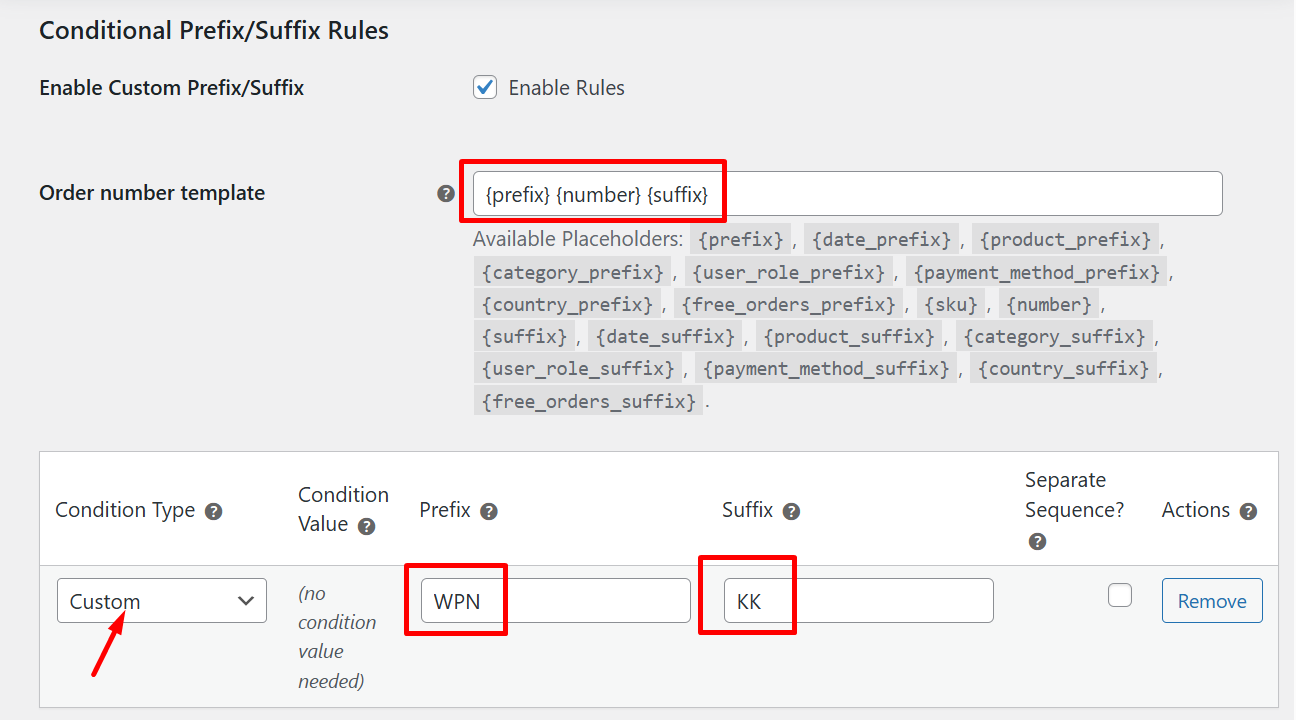 These merge codes will be replaced with their respective values and the custom order number will displayed on the Orders page for the already placed orders as shown below: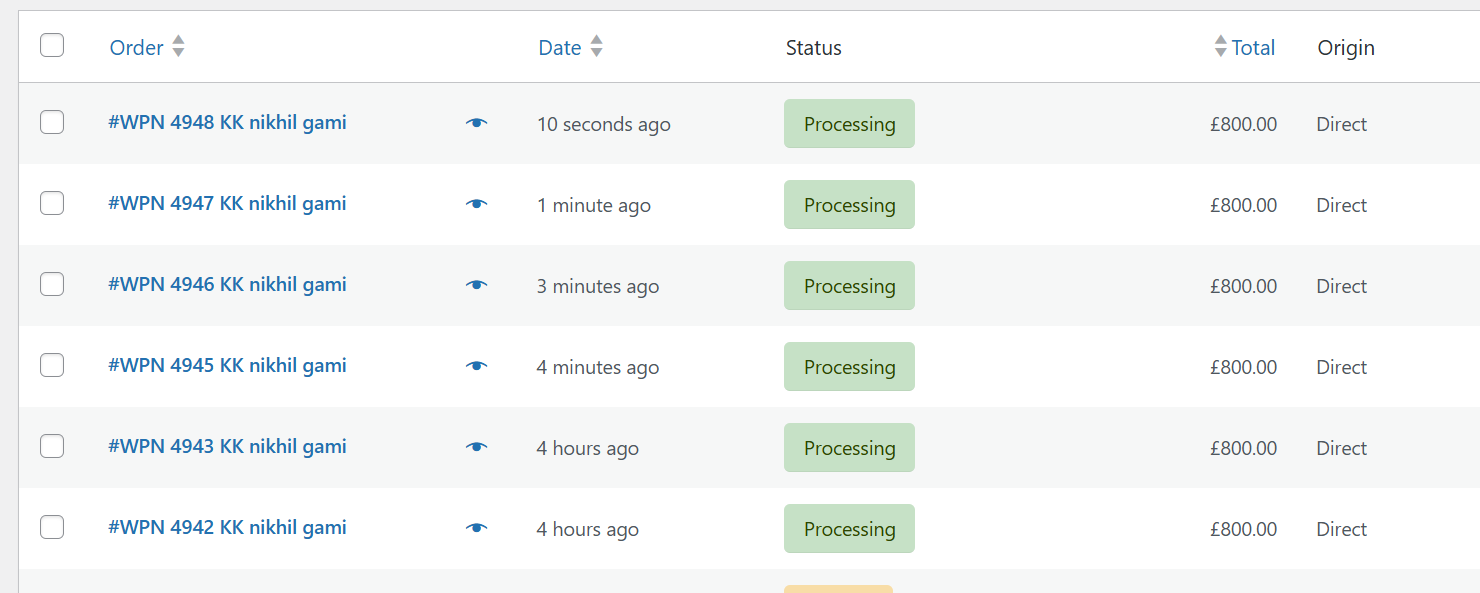
Add a Conditional Rule
Let’s now look at the available Conditions that determine when and how a specific prefix or suffix will be applied to the order number. 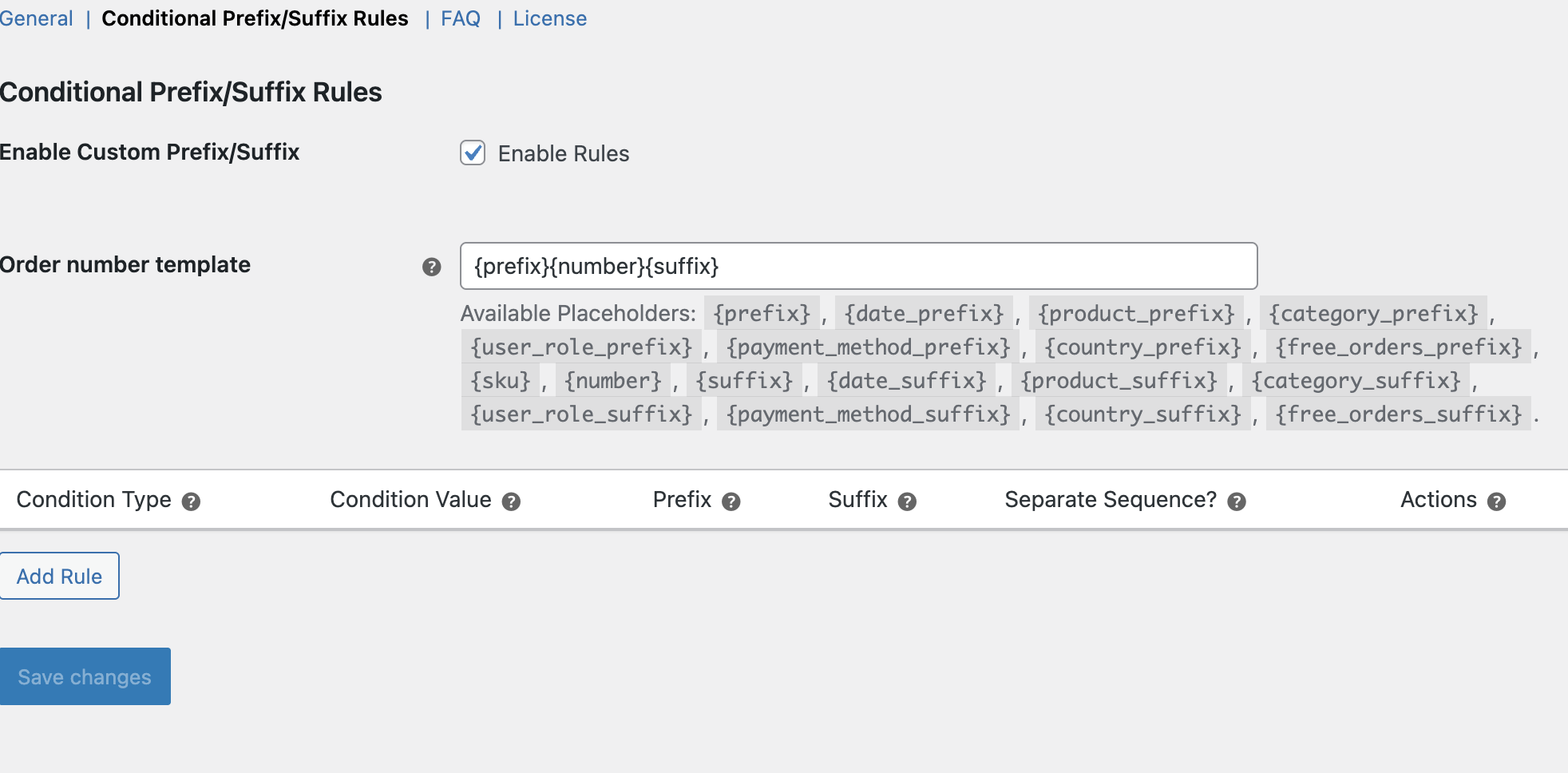
Each rule includes:
1. Condition Type:
The criteria (like product, category, etc.) that trigger the conditional prefix/suffix.
2. Condition Value:
The specific value (e.g., a product name, category, or country) that satisfies the condition type.
3. Prefix:
The custom text that will appear before the order number when the condition is met.
4. Suffix :
The custom text that will appear after the order number when the condition is met.
5. Separate Sequence:
Enable the use of a distinct order number sequence for this condition instead of the global counter. When the separate sequence is enabled, it ensures that each matching condition type follows its own independent sequential numbering, separate from the global WooCommerce order number sequence.
6. Actions:
Options to edit or delete the configured conditional rule.
Condition Type: Product
This rule applies a specific prefix or suffix to the order number when a particular product is purchased.  If a customer purchases the Protein Shake and the order number is 4942, the final order number will appear as: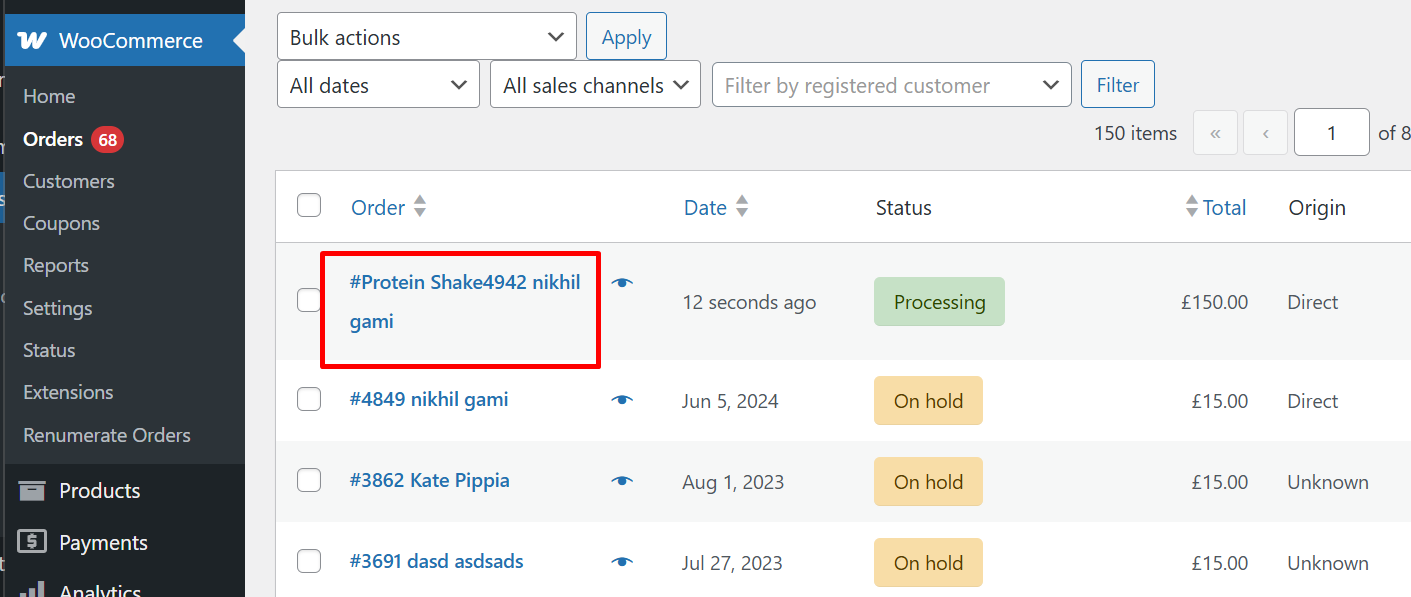
Separate Sequence to Apply Independent Order Numbers for Each Rule
Some businesses require independent order number sequences per product, event, payment method, or any other condition, instead of one global WooCommerce counter.
The “Separate Sequence” option within each Conditional Rule allows you to achieve exactly that.
- When the Separate Sequence is Disabled (Global Sequence Shared Across All Rules).
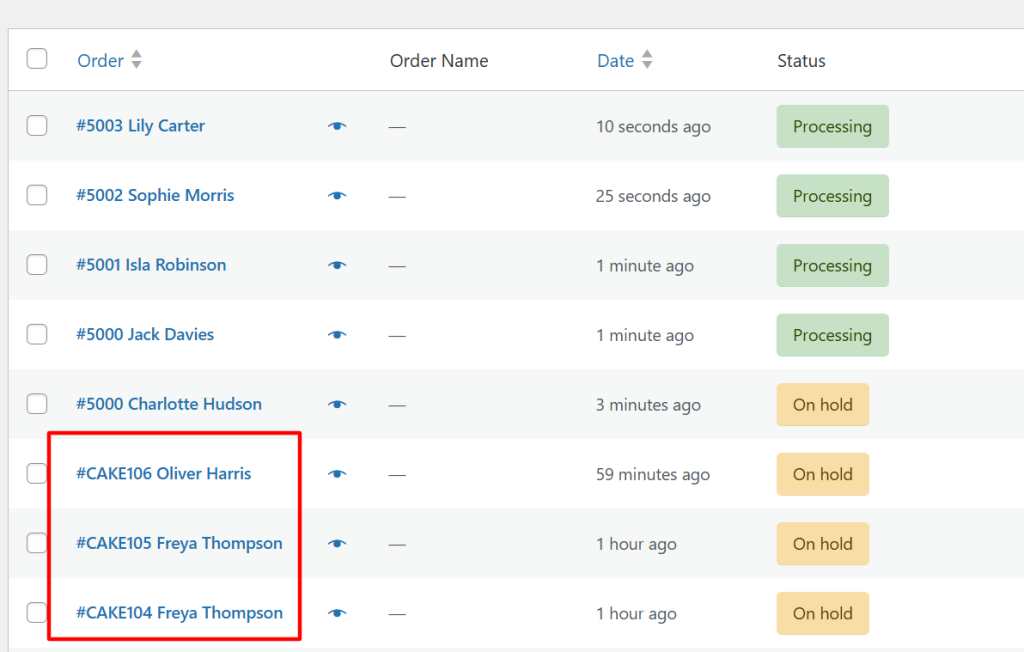
When disabled, all rules share the same global sequence, so numbering continues across all products or categories, whether they match a rule or not.
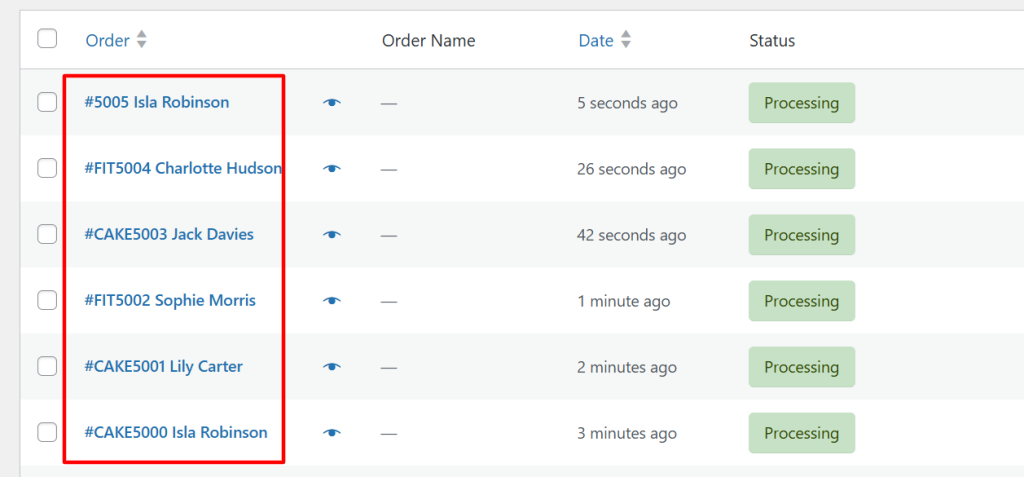
For example: FIT-1000, CAKE-1001, FIT-1002, 1003, CAKE-1004, FIT-1005, etc.
- When Separate Sequence is Enabled
When enabled, each conditional rule (e.g., based on a specific product or product category) maintains its own order number counter.
For instance:
• FIT-001, FIT-002 for High-Waisted Yoga Leggings (Fitness Apparel)
• CAKE-001, CAKE-002 for Birthday Cake – Chocolate Truffle (Cake category)
Condition Type: Category
This rule adds a prefix or suffix based on the product category of the item(s) in the order. 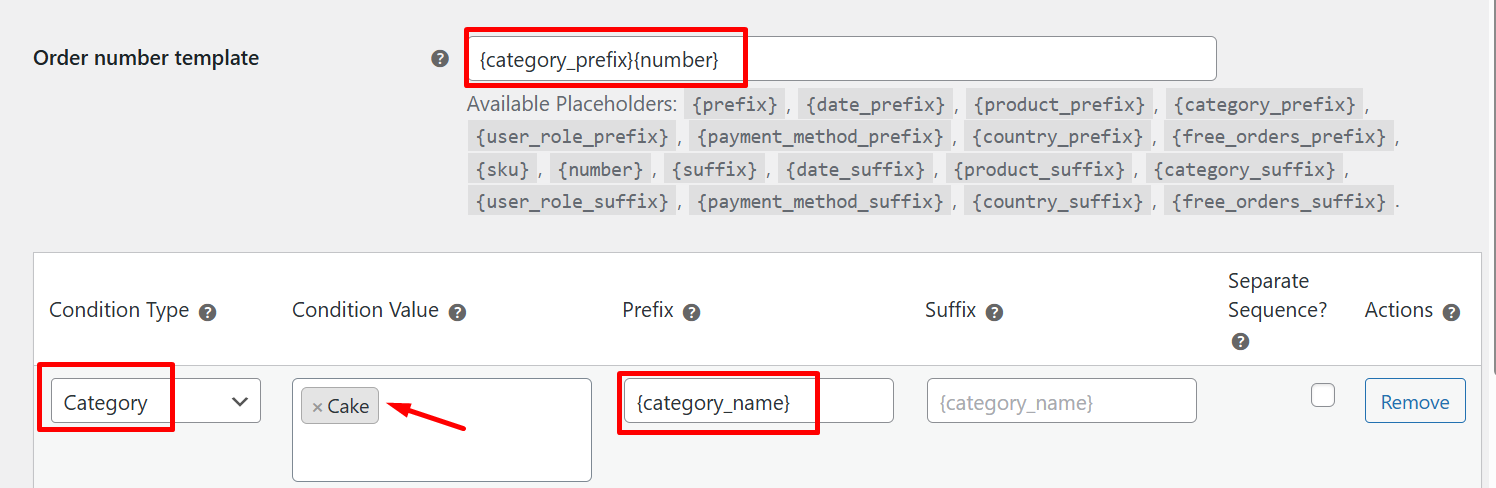 If the order contains any products from the ‘Cake’ category, then the order number will have the prefix ‘CAKE-‘, as shown below: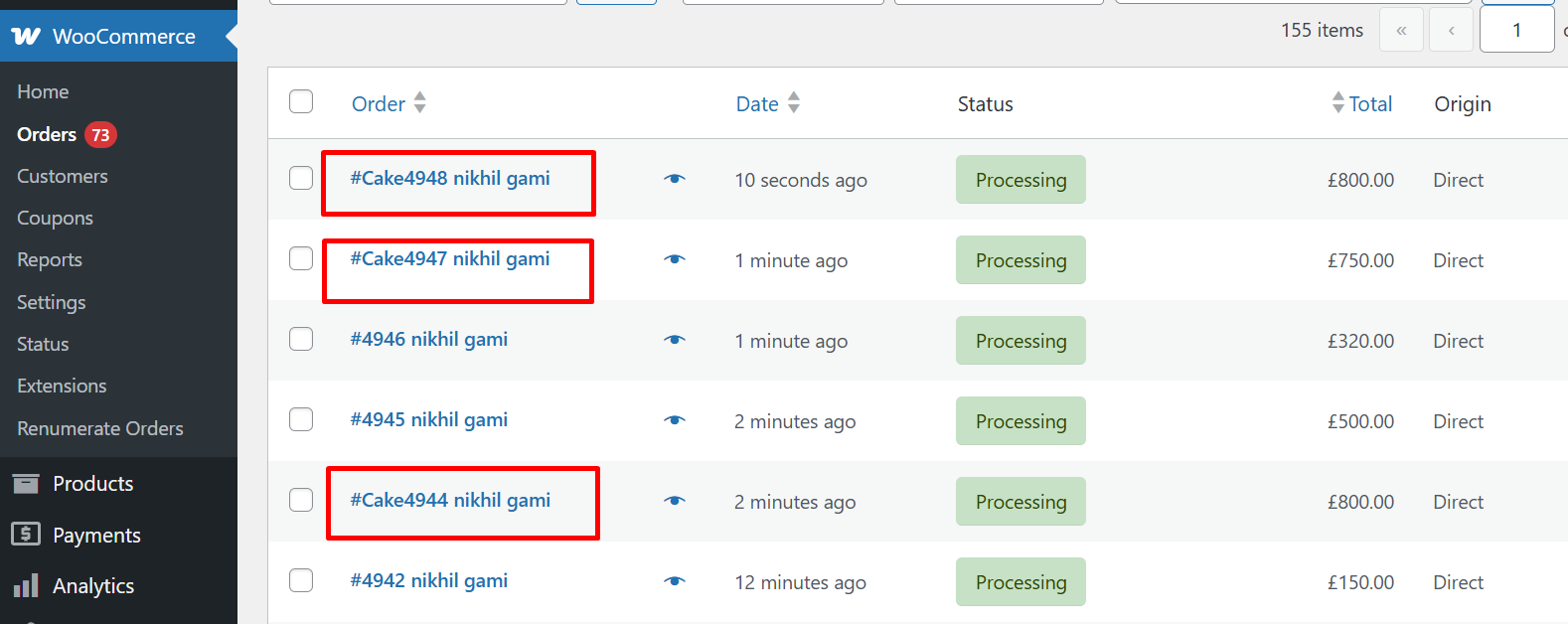
Condition Type: Payment Method
This rule sets a custom prefix or suffix based on the selected payment gateway. 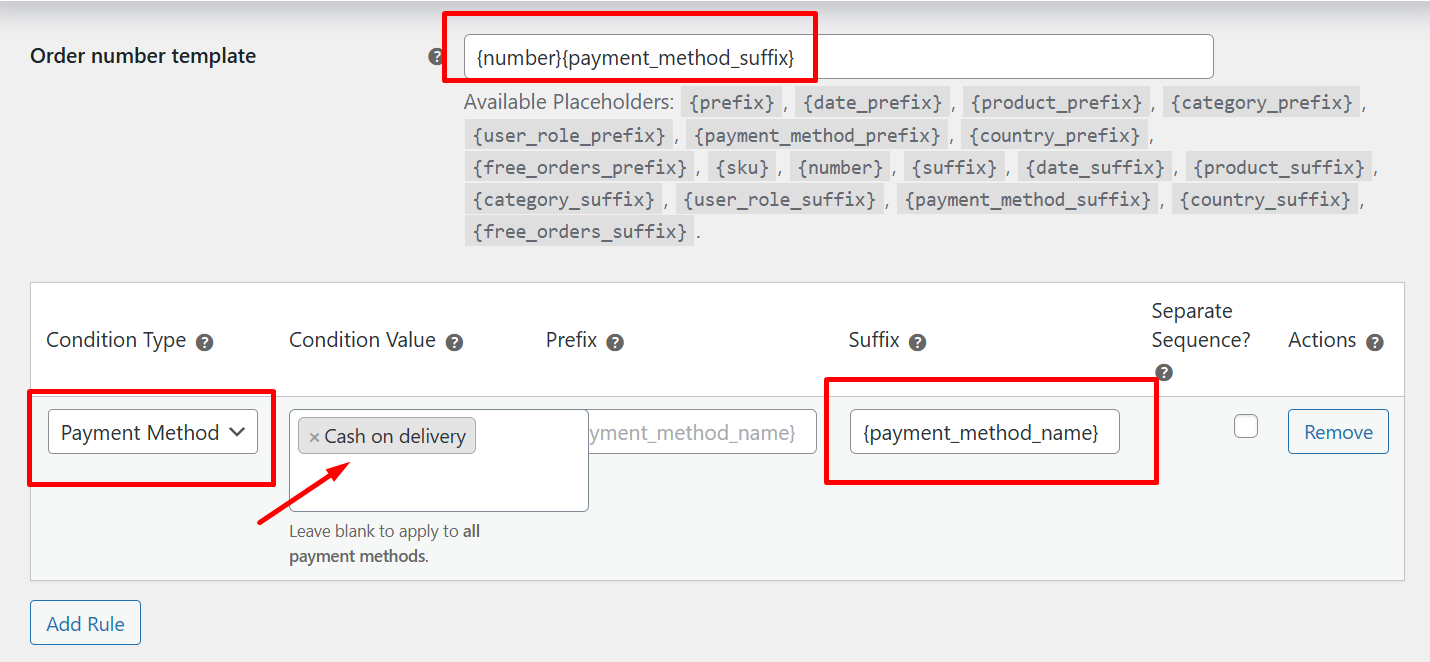 If the customer selects the ‘Cash on Delivery (COD)’ payment method at checkout and places the order, then the order number will have the suffix ‘-Cash On Delivery’ added to it.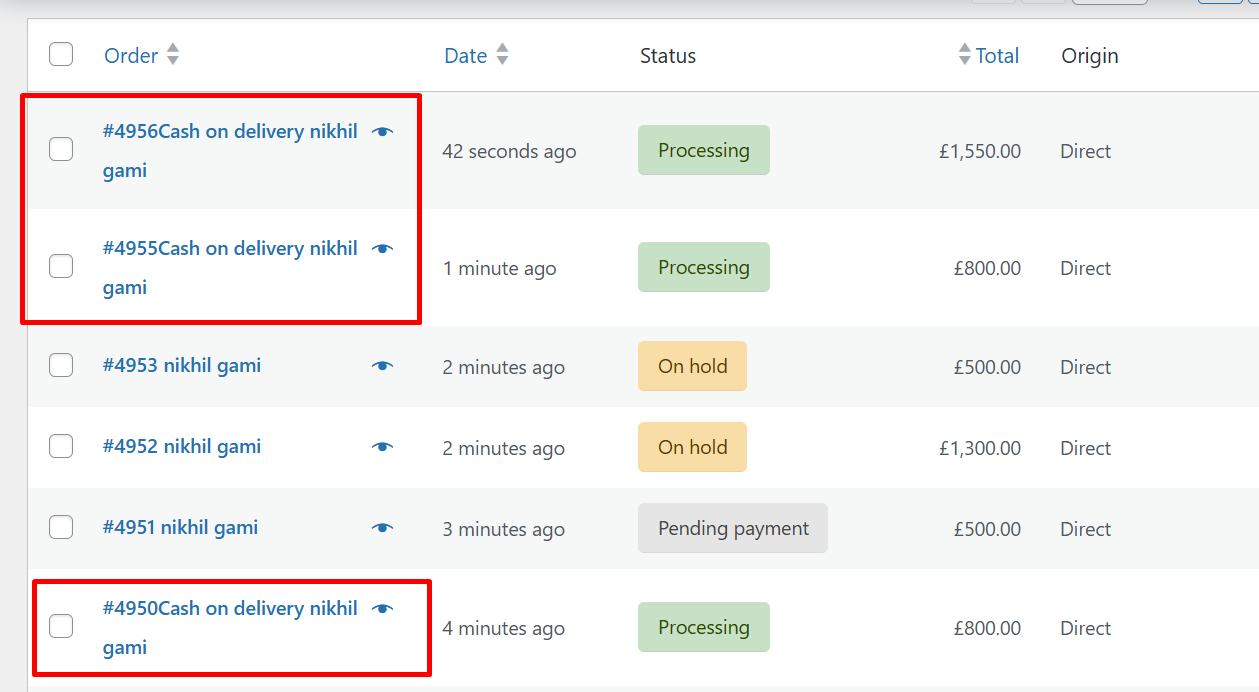
Condition Type: Country
This rule assigns a specific prefix or suffix to the order number based on the customer’s billing country selected during checkout. 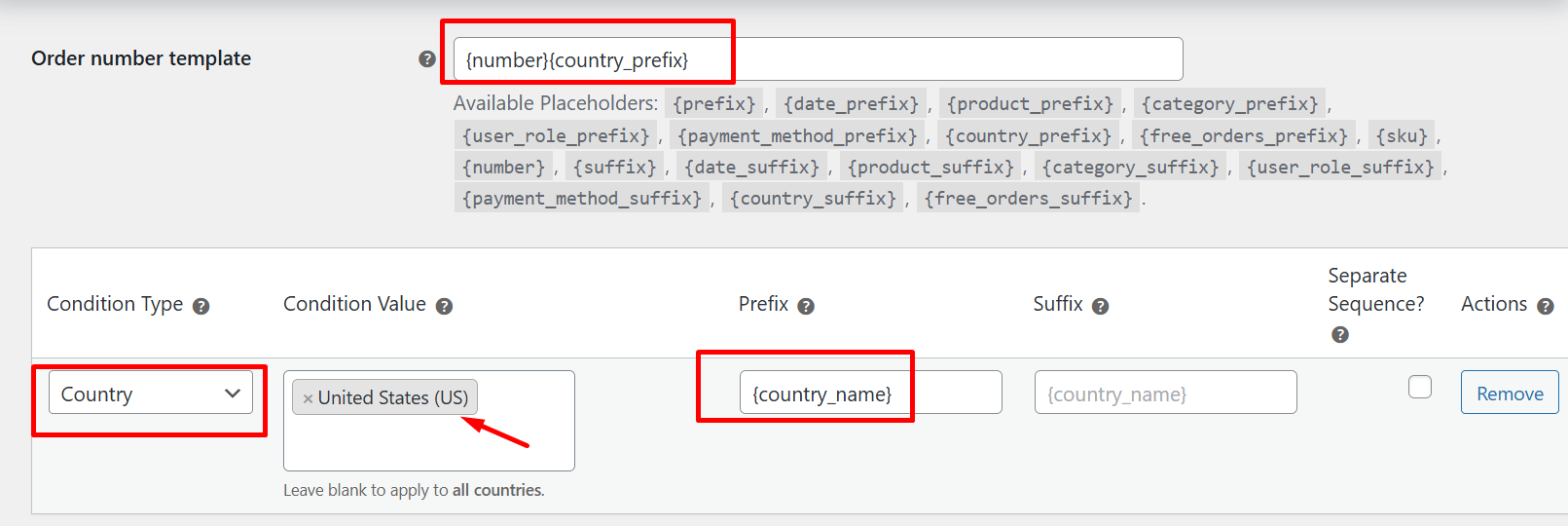 If the condition type is set to country with the value of United States (US) and the prefix is configured as ‘{country_name}’, then all order numbers from customers in the US will include this prefix, helping to quickly identify the country of origin for each order.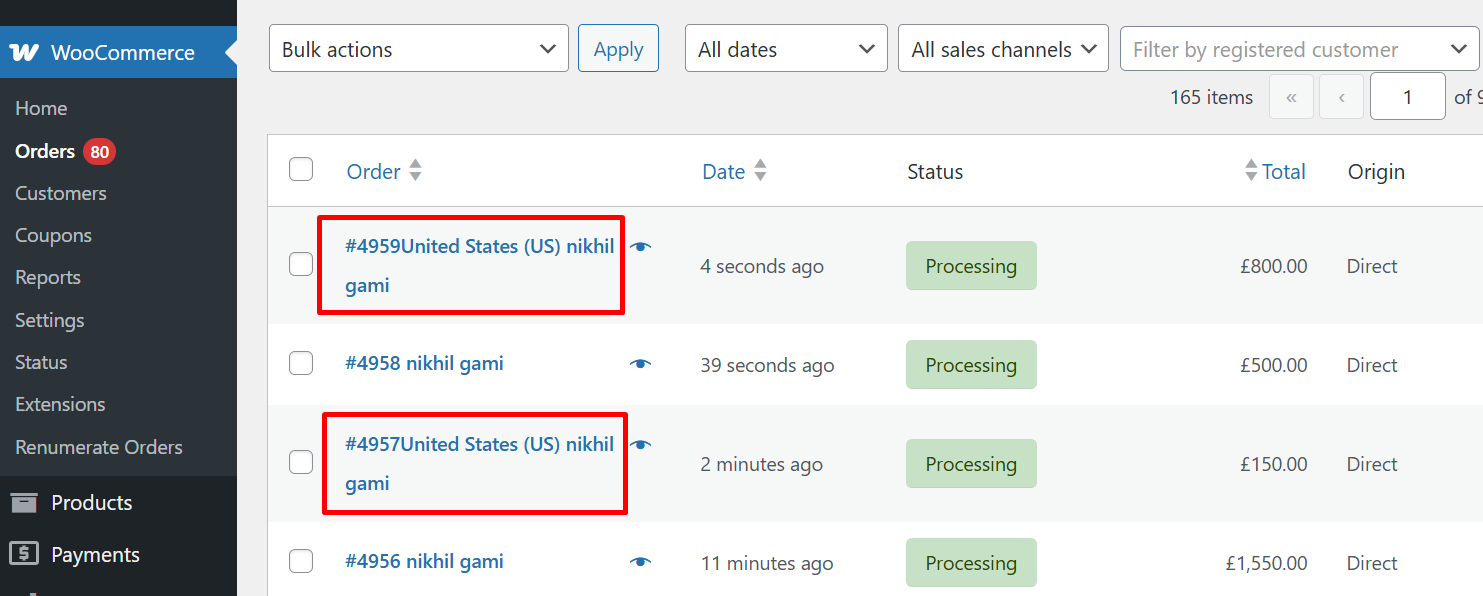
Condition Type: User Role
This rule applies a specific prefix or suffix to the order number based on the user role assigned to the customer who placed the order. This helps differentiate order types based on user segmentation (e.g., Retail vs Wholesale).  If the customer is a Subscriber, and the prefix is set to SUB-, then all orders placed by the Subscriber with that role will show up as 5005SUB-.
Condition Type: Date
This rule allows you to apply a prefix or suffix to order numbers based on the order date. This is useful for archiving, tax year segmentation, or seasonal order management. If you want to add an mdy (month-day-year) prefix to the orders numbers, configure the Date condition with the prefix format mdy. 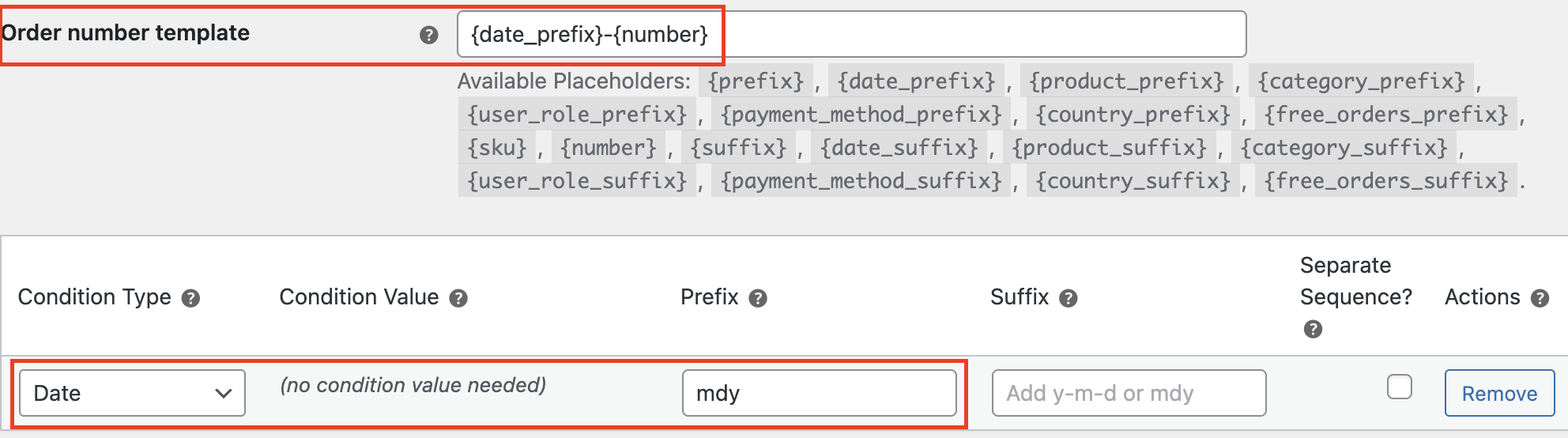 An order placed on that date would appear as below:
Condition Type: Custom
This option lets you apply a custom prefix and/or suffix to all order numbers without using any specific conditions. You can use any combination of characters or patterns, and they will appear before or after the order number. For instance, say you add the prefix WPN in this setting.
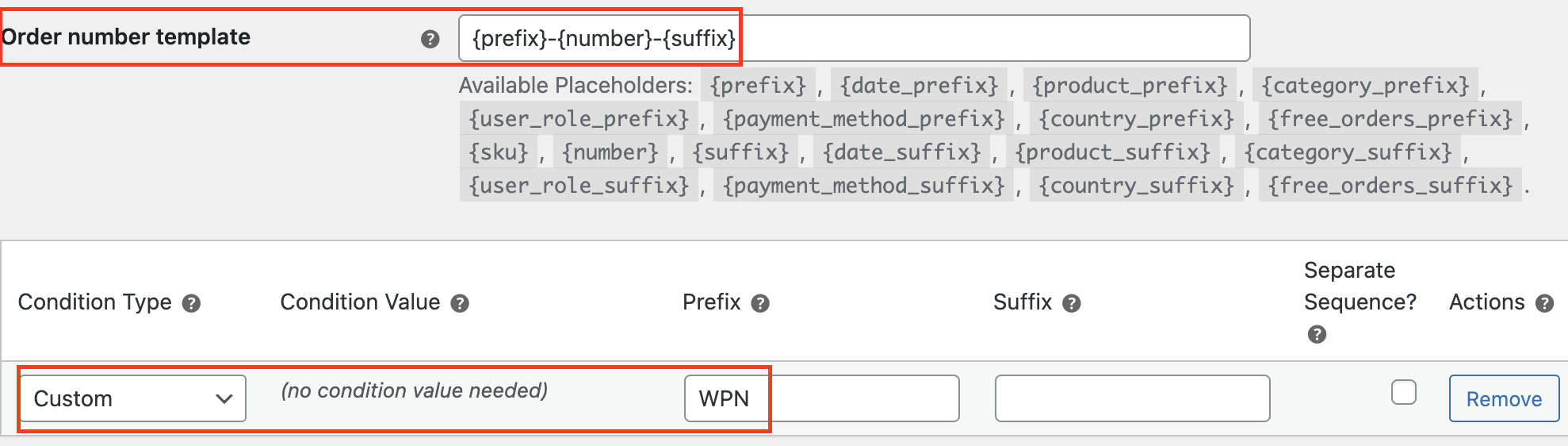
Now when you check the Orders page, all order numbers will contain the prefix as WPN as shown below:

Condition Type: Free Orders
This rule applies a prefix or suffix specifically to orders with a total value of zero. For example, promotional or sample orders.
Let’s say, for free orders, you might want to add a suffix like –FR. 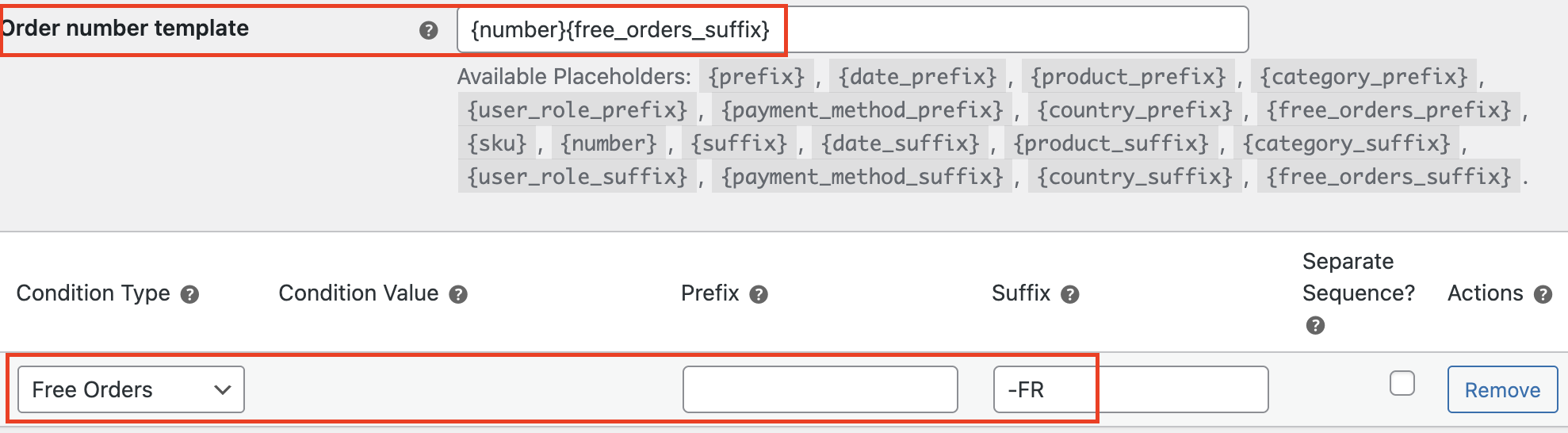
In this case, the order number will be 15007-FR.
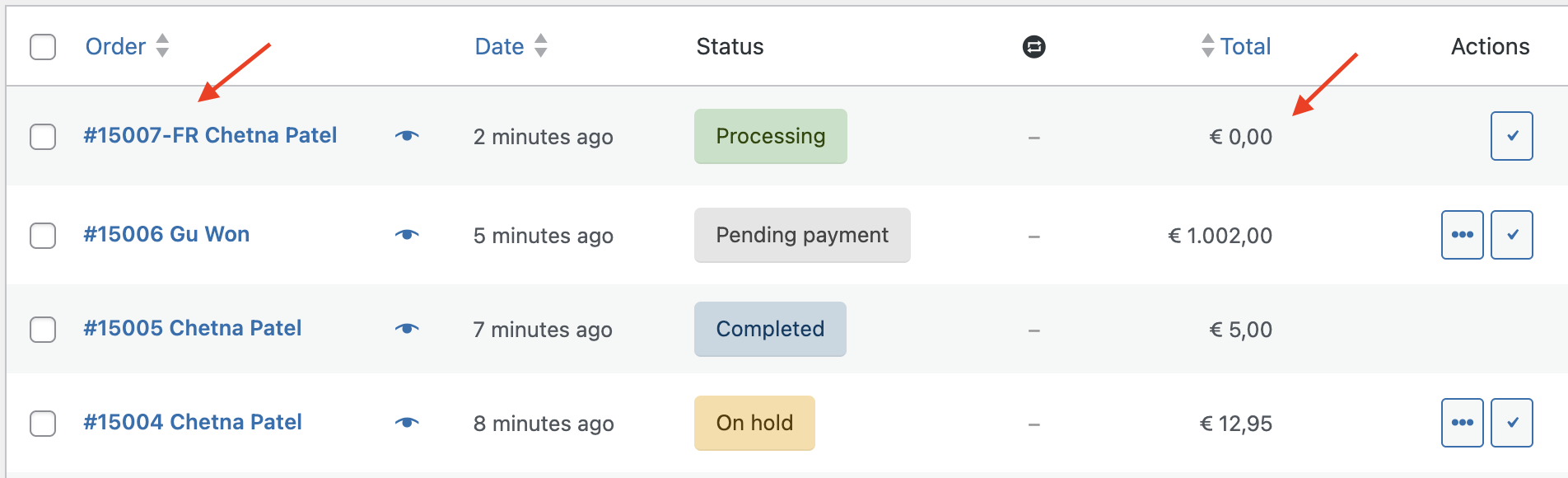
This makes it easier to identify and separate out no-cost transactions in your reporting or exports.