


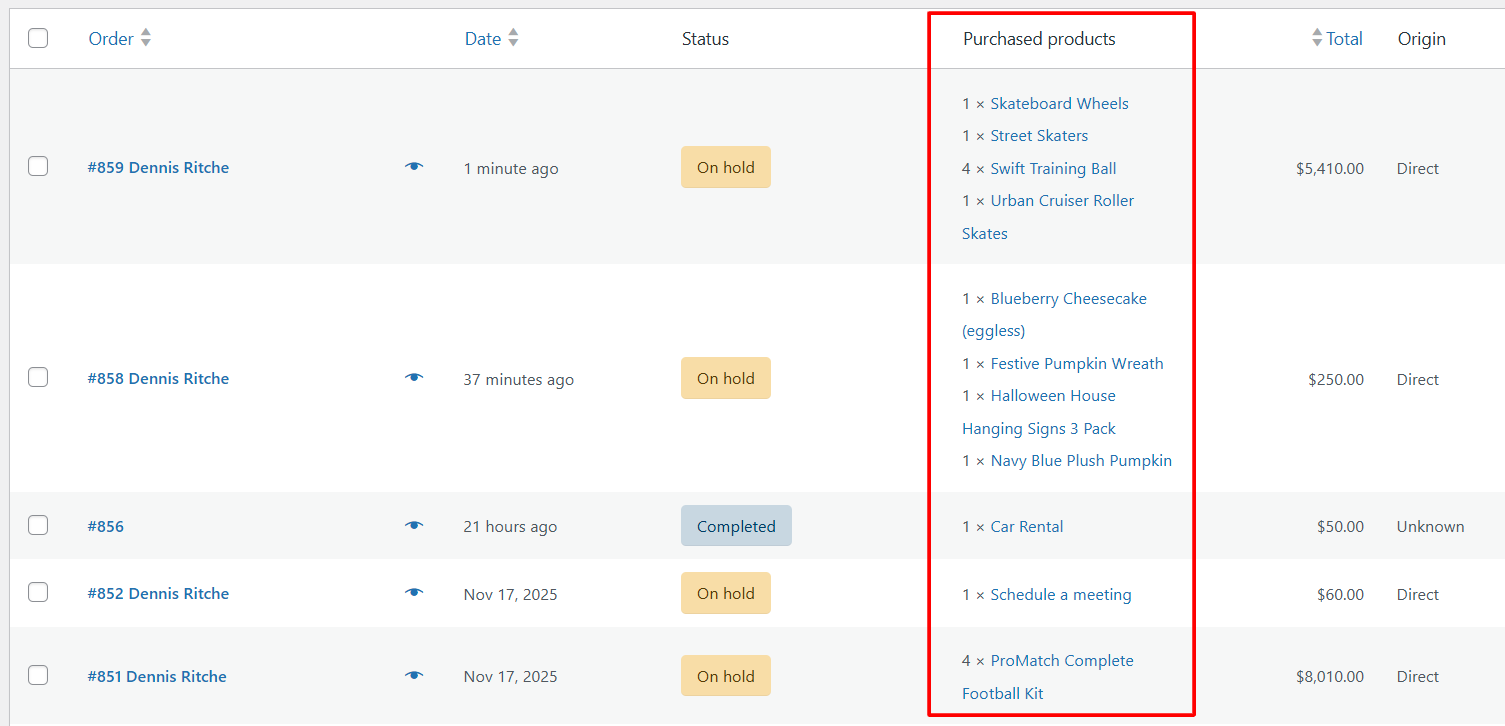
When processing orders in WooCommerce, store owners often need a quick way to see what a customer has purchased without opening every single order. By default, WooCommerce does not show product details in the Orders list, which slows down packing, verification, and fulfilment.
To solve this, you can add a custom column that instantly shows all items purchased with links and the order quantity of each order.
Solution: Display on WooCommerce Orders Page
The snippet below adds a new column labeled Purchased products to the admin orders list. It works for both CPT-based orders (legacy) and HPOS-enabled stores.
// legacy – for CPT-based orders
add_filter( 'manage_edit-shop_order_columns', 'ts_order_items_column' );
// for HPOS-based orders
add_filter( 'manage_woocommerce_page_wc-orders_columns', 'ts_order_items_column' );
function ts_order_items_column( $columns ) {
	// let's add our column before "Total"
	$columns = array_slice( $columns, 0, 4, true ) // 4 columns before
	+ array( 'order_products' => 'Purchased products' ) // our column is going to be 5th
	+ array_slice( $columns, 4, NULL, true );
	return $columns;
}

// legacy – for CPT-based orders
add_action( 'manage_shop_order_posts_custom_column', 'ts_populate_order_items_column', 25, 2 );
// for HPOS-based orders
add_action( 'manage_woocommerce_page_wc-orders_custom_column', 'ts_populate_order_items_column', 25, 2 );
function ts_populate_order_items_column( $column_name, $order_or_order_id ) {

	// legacy CPT-based order compatibility
	$order = $order_or_order_id instanceof WC_Order ? $order_or_order_id : wc_get_order( $order_or_order_id );

	if( 'order_products' === $column_name ) {
		$items = $order->get_items();

		if( ! is_wp_error( $items ) ) {
			foreach( $items as $item ) {
 				echo $item['quantity'] . ' × <a href="' . get_edit_post_link( $item['product_id'] ) . '">' . $item['name'] . '</a><br />';
			}
		}
	}
}
Output
After adding this snippet, your WooCommerce Orders page will show a new column labeled Purchased products.
Inside it, you’ll see:
- All items purchased in that order
- Quantity
- Product names are linked directly to the Product Edit screen
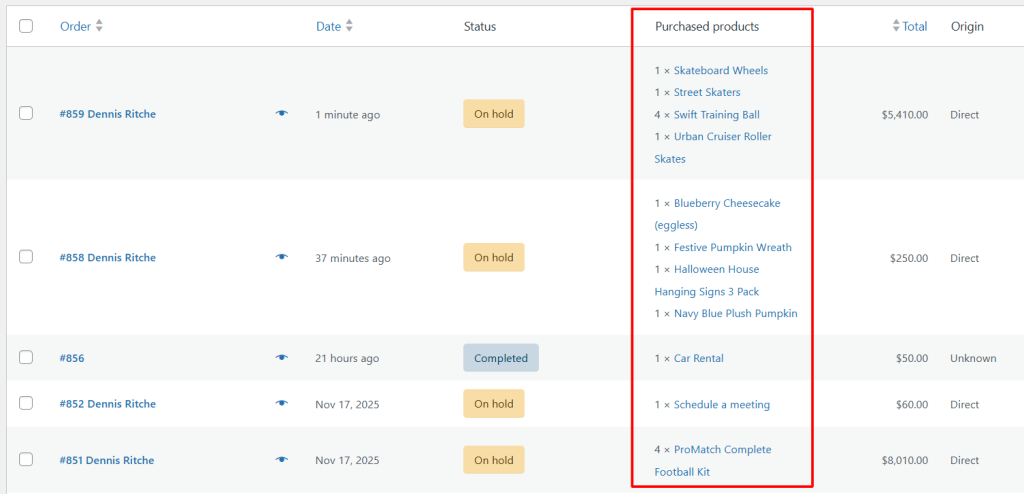
Adding a “Purchased Products” column lets you quickly see what each customer ordered, along with quantities and links to edit products. You can do the same with other details too, for example, adding a payment method column or adding a custom column for the shipping method to the woocommerce orders page. This way, you can tailor your orders view exactly to your store’s workflow, making order management faster and more intuitive.
