


By default, WooCommerce uses the same single product template (single-product.php) for all products, regardless of the category they belong to. While this setup works well for most stores, there are cases where you might want to give a specific category of products a unique design or layout—say, electronics, apparel, or digital downloads.
In this guide, we’ll show you how to assign a single product template to a product based on its category in WooCommerce.
Solution: Assign a Single Product Template to a Product by Its Category
We can achieve this by creating a custom product template for a category and then using a function in the functions.php file to force WooCommerce to load that template for products in that category.
Step 1: Create a Custom Product Template
- Inside your active theme (preferably a child theme), create a folder named woocommerce.
- Inside the woocommerce folder, create a PHP file for your custom template. For example: single-product-tech.php.
- Add the following code inside single-product-tech.php:
<?php
defined('ABSPATH') || exit;

get_header('shop');

// ✅ Properly load product object
global $post;
$product = wc_get_product($post->ID);

// ✅ Safety check
if (!$product) {
    echo '<p>Product not found.</p>';
    get_footer('shop');
    return;
}
?>

<div class="tech-product-wrapper" style="
    max-width:1200px;
    margin:60px auto;
    padding:40px;
    background:#ffffff;
    color:#1f2933;
    border-radius:14px;
    box-shadow:0 10px 30px rgba(0,0,0,.08);
">

    <div style="display:grid;grid-template-columns:1fr 1fr;gap:50px;align-items:center;">

        <!-- ✅ LEFT: PRODUCT IMAGE -->
        <div style="
            background:#f8fafc;
            padding:30px;
            border-radius:14px;
            border:1px solid #e5e7eb;
        ">
            <?php do_action('woocommerce_before_single_product_summary'); ?>
        </div>

        <!-- ✅ RIGHT: PRODUCT DETAILS -->
        <div>

            <h1 style="
                font-size:34px;
                margin-bottom:12px;
                color:#0f172a;
            ">
                <?php the_title(); ?>
            </h1>

            <div style="
                font-size:22px;
                font-weight:600;
                margin-bottom:18px;
                color:#2563eb;
            ">
                <?php woocommerce_template_single_price(); ?>
            </div>

            <div style="
                font-size:16px;
                line-height:1.7;
                margin-bottom:28px;
                color:#374151;
            ">
                <?php woocommerce_template_single_excerpt(); ?>
            </div>

            <div style="margin-bottom:28px;">
                <?php woocommerce_template_single_add_to_cart(); ?>
            </div>

            <div style="
                font-size:14px;
                color:#6b7280;
            ">
                <?php woocommerce_template_single_meta(); ?>
            </div>

        </div>
    </div>

   <!-- Restores WooCommerce tabs functionality -->
<?php do_action('woocommerce_after_single_product_summary'); ?>

<!-- PRODUCT TABS (LIGHT DESIGN) -->
<div style="
    margin-top:60px;
    background:#f9fafb;
    padding:35px;
    border-radius:14px;
    border:1px solid #e5e7eb;
">
    <?php woocommerce_output_product_data_tabs(); ?>
</div>


<?php get_footer('shop'); ?>
Note: This file is your custom template for the “electronics” category. You can edit these templates for other categories by following the same structure.
Step 2: Force WooCommerce to Use the Custom Template
Next, we need to add a function to your functions.php (or your child theme’s functions.php) that checks the product category and loads the appropriate template.
The code below checks if the current page is a single product page. It then retrieves the product’s categories and compares them with the mapping array. If a match is found, WooCommerce loads the custom template file instead of the default single-product.php.
add_filter('template_include', 'force_category_specific_single_product_template', 999);

function force_category_specific_single_product_template($template) {

    // Only target single product pages
    if (!is_product()) {
        return $template;
    }

    $product_id = get_the_ID();

    // Get category slugs
    $terms = wp_get_post_terms($product_id, 'product_cat', ['fields' => 'slugs']);

    if (empty($terms)) {
        return $template;
    }

    // ✅ Your category → template mapping
    $map = [
        'electronics' => 'single-product-tech.php',
    ];

    foreach ($terms as $slug) {
        if (isset($map[$slug])) {

            // ✅ Absolute path to your template
            $new_template = get_stylesheet_directory() . '/woocommerce/' . $map[$slug];

            if (file_exists($new_template)) {
                return $new_template; // ✅ FORCE LOAD
            }
        }
    }

    return $template;
}
Output
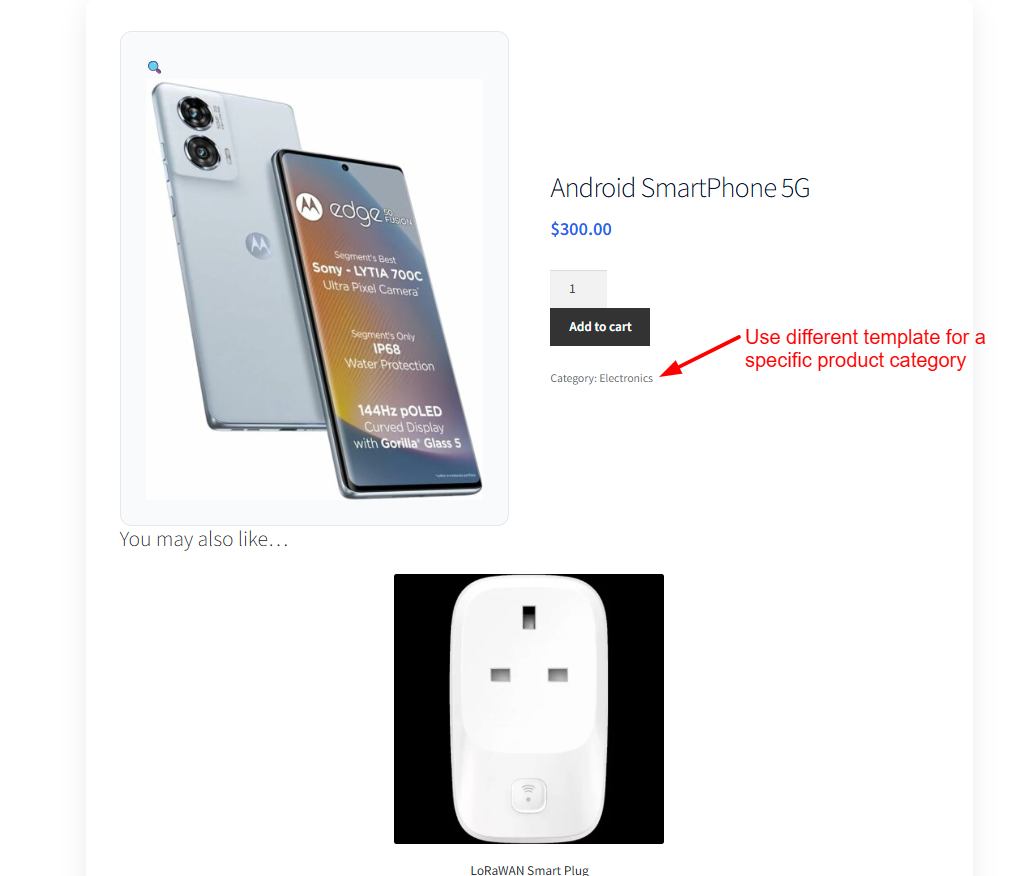
Once all the above-mentioned setups are complete, products in the electronics category will load the single-product-tech.php template.
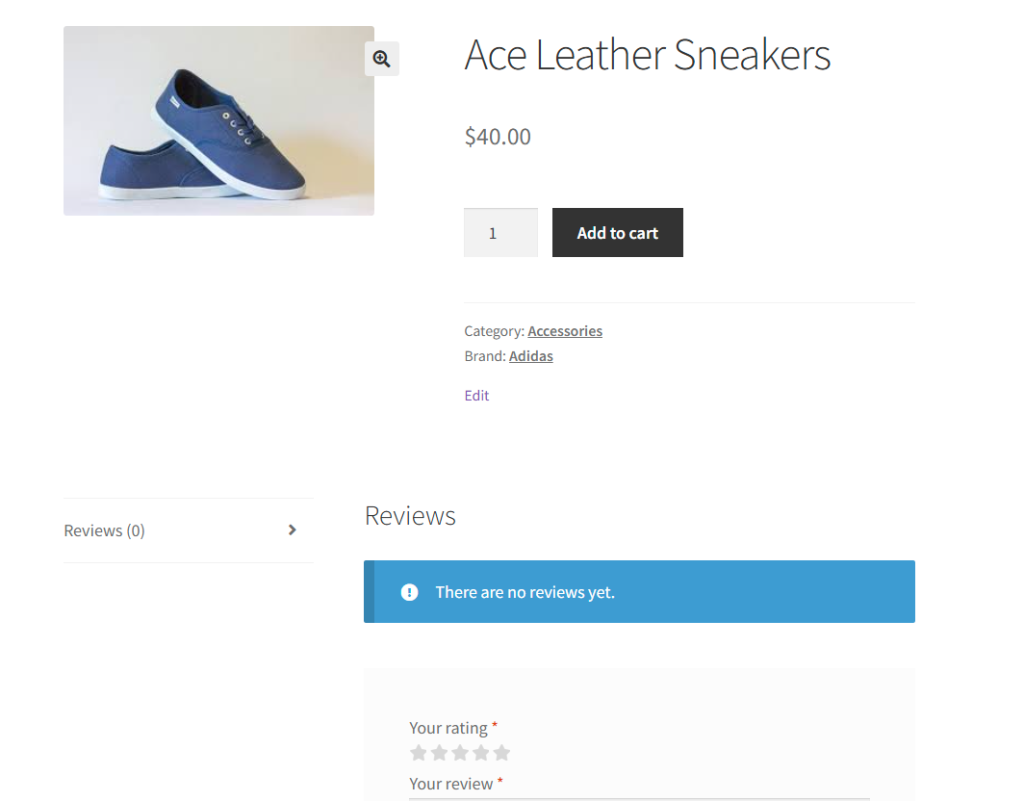
All other products will continue to use the default single-product.php template.
So with this setup, you now have full control over how different product categories look on your store.
Instead of showing the same layout for every product, you can now design pages that actually match the type of product you’re selling — whether it’s electronics, fashion, or anything else.
And if you enjoyed this kind of customization, you’ll probably like our other guide on creating custom page templates in WordPress. In that post, we walk you through how to build custom layouts for pages like portfolios and landing pages, step by step.
