


WooCommerce orders sometimes require additional internal fields, like tracking IDs, reference numbers, or custom notes. However, adding a custom metabox to the WooCommerce order edit page can fail when HPOS (High-Performance Order Storage) is enabled, because the screen ID changes. In this guide, we’ll show how to safely add a custom metabox that works with or without HPOS, allowing you to store and edit a custom field like a “Number ID” for each order.
Solution: Add a Custom Metabox to WooCommerce Order Edit Page
The snippet below adds a new metabox titled “Custom Meta Box” to the WooCommerce order screen. It detects whether HPOS is enabled and automatically assigns the correct screen ID, ensuring fully compatibility with HPOS. Inside this metabox, you can view the order number and add or update a custom field called Number ID.
use Automattic\WooCommerce\Internal\DataStores\Orders\CustomOrdersTableController;

/**
 * Add custom metabox to WooCommerce orders (compatible with HPOS)
 */
add_action( 'add_meta_boxes', 'ts_add_custom_order_metabox' );
function ts_add_custom_order_metabox() {

    // Detect if HPOS (High-Performance Order Storage) is enabled
    $screen = class_exists( '\Automattic\WooCommerce\Internal\DataStores\Orders\CustomOrdersTableController' )
        && wc_get_container()->get( CustomOrdersTableController::class )->custom_orders_table_usage_is_enabled()
            ? wc_get_page_screen_id( 'shop-order' )
            : 'shop_order';

    // Add metabox
    add_meta_box(
        'ts_custom_order_box',              // Metabox ID
        __( 'Custom Meta Box', 'woocommerce' ),  // Title
        'ts_custom_order_metabox_content',  // Callback function
        $screen,                            // Screen
        'side',                             // Context (side, normal)
        'high'                              // Priority
    );
}

/**
 * Display content inside the custom metabox
 */
function ts_custom_order_metabox_content( $object ) {
    // Get WC_Order object safely
    $order = is_a( $object, 'WP_Post' ) ? wc_get_order( $object->ID ) : $object;

    // Retrieve saved value
    $number_id = $order->get_meta( 'number_id' );

    echo '<p><strong>' . __( 'Order Number:', 'woocommerce' ) . '</strong> ' . esc_html( $order->get_order_number() ) . '</p>';
    echo '<p>
        <label for="number_id">' . __( 'Number ID', 'woocommerce' ) . ':</label><br>
        <input type="text" id="number_id" name="number_id" value="' . esc_attr( $number_id ) . '" style="width:100%;" />
    </p>';
}

/**
 * Save the custom metabox field value
 */
add_action( 'woocommerce_process_shop_order_meta', 'ts_save_custom_order_metabox_value', 20, 1 );
function ts_save_custom_order_metabox_value( $order_id ) {
    $order = wc_get_order( $order_id );

    if ( isset( $_POST['number_id'] ) ) {
        $order->update_meta_data( 'number_id', sanitize_text_field( $_POST['number_id'] ) );
        $order->save();
    }
}
Output
Once this snippet is added, you will see a new Custom Meta Box in the sidebar of every order edit screen.
Inside the metabox:
- The Order Number is displayed for quick reference.
- A Number ID text field allows you to enter and save a custom value for internal or any other use.
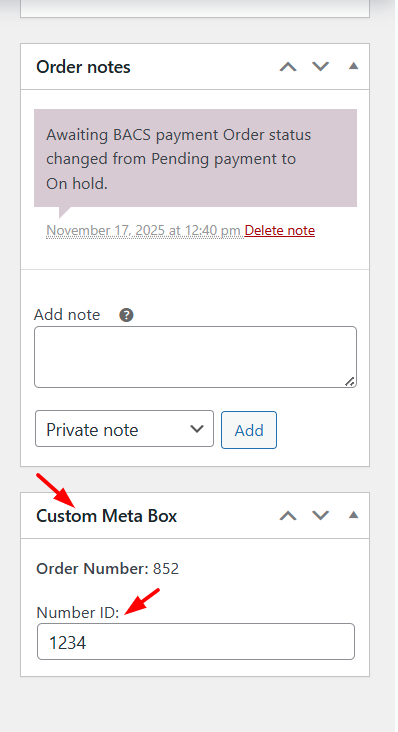
When the admin enters a Number ID in the Custom Meta Box and clicks Update, it is saved as order meta in the database. In the admin, this is visible under Custom Fields for that order.
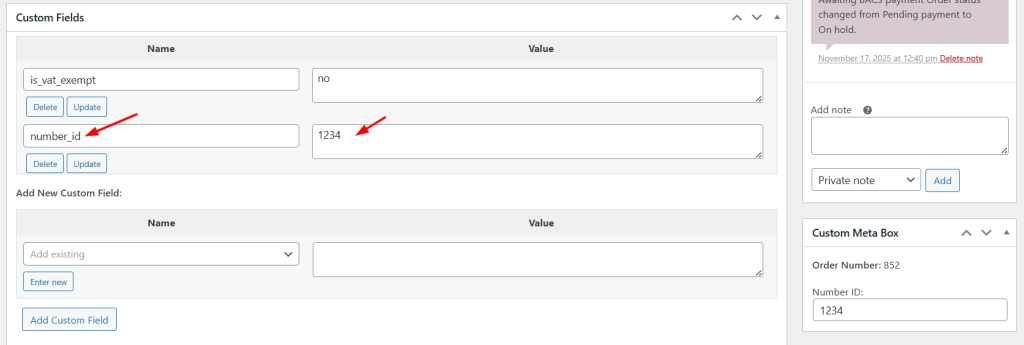
With a custom meta box on the WooCommerce order edit page, admins can save extra internal info like a Number ID or tracking code directly inside the order. Likewise, custom fields can also be added for specific payment methods at checkout, letting admins manage extra order data efficiently.
