Many store owners want more control over how many orders they can handle on different days and at different times. With the Product Delivery Date Plugin, you can set individual maximum deliveries for each recurring weekday, each specific date, and each time slot — instead of relying on a single global cap. You still have a global Maximum deliveries per day (Delivery Options) that acts as a fallback when a weekday, date, or slot does not have its own value.
In this guide, we’ll show how to configure per-weekday, per-date, and per-slot limits, how those limits appear on the storefront, and how the lockout behaviour works so you never overbook.
Let us understand this setting for all three product delivery options:
Recurring Weekdays
Let’s say you run Apex Bags Company, selling different types of bags online. You deliver on weekdays, but the number of deliveries can differ from day to day. First, there is a global maximum deliveries per day set in the Delivery Options tab. This acts as a fallback limit for any weekday that doesn’t have its own maximum. For example, let’s set the global maximum to 15 deliveries per day.
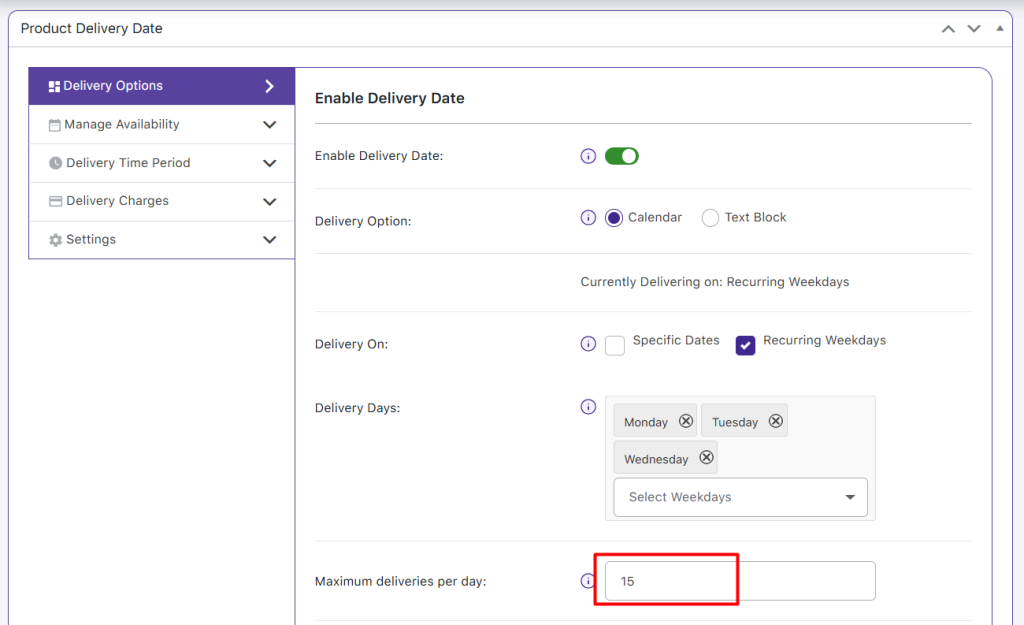
In the Manage Availability tab, you can now set individual maximum deliveries for each weekday. For instance, you may set Monday to 10 deliveries and Tuesday to 5 deliveries, while leaving Wednesday blank so it uses the global fallback of 15.
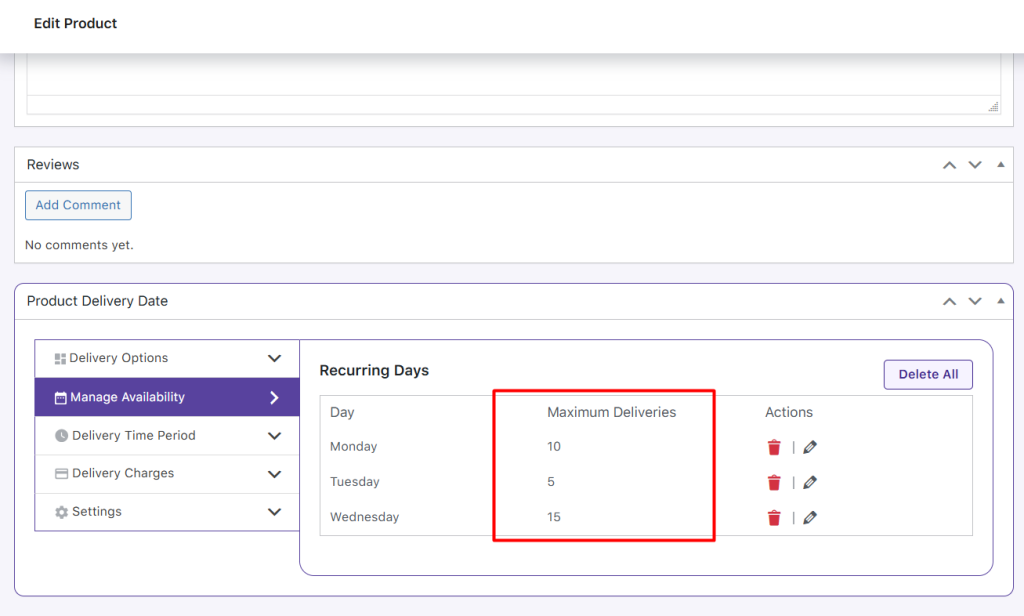
When a customer selects Monday as their delivery date, the product page will show that 10 deliveries are available. After one order is placed, the availability will automatically update to 9.
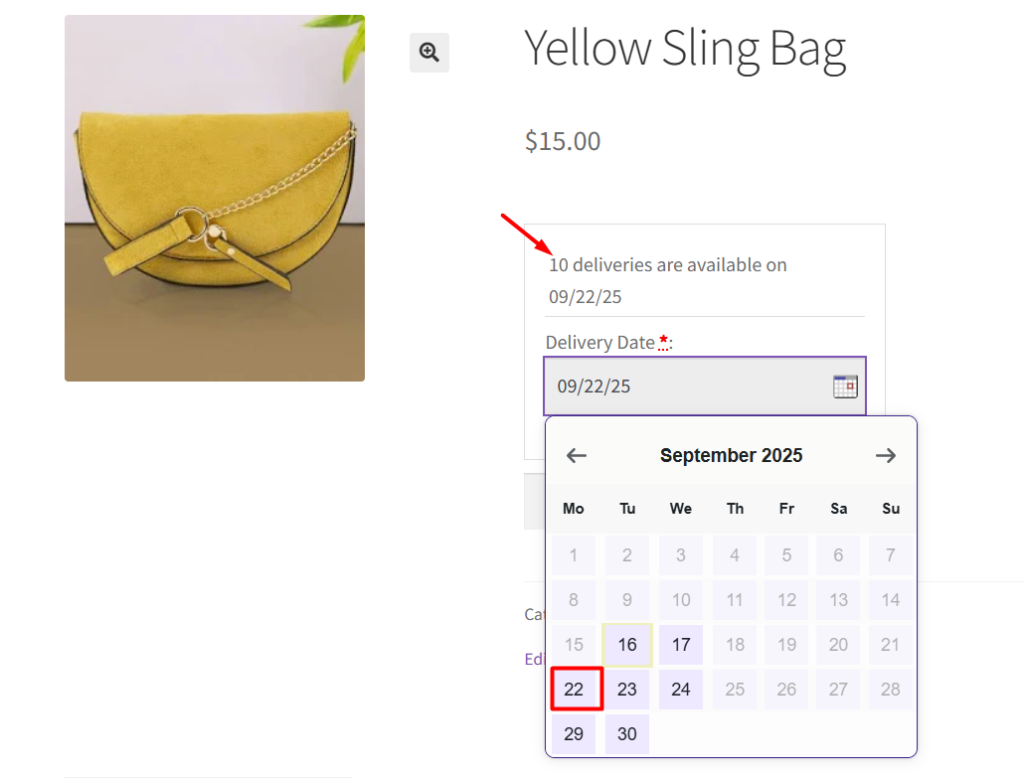
Similarly, if a customer selects Tuesday, they will see 5 deliveries available, which reduces as orders are placed.
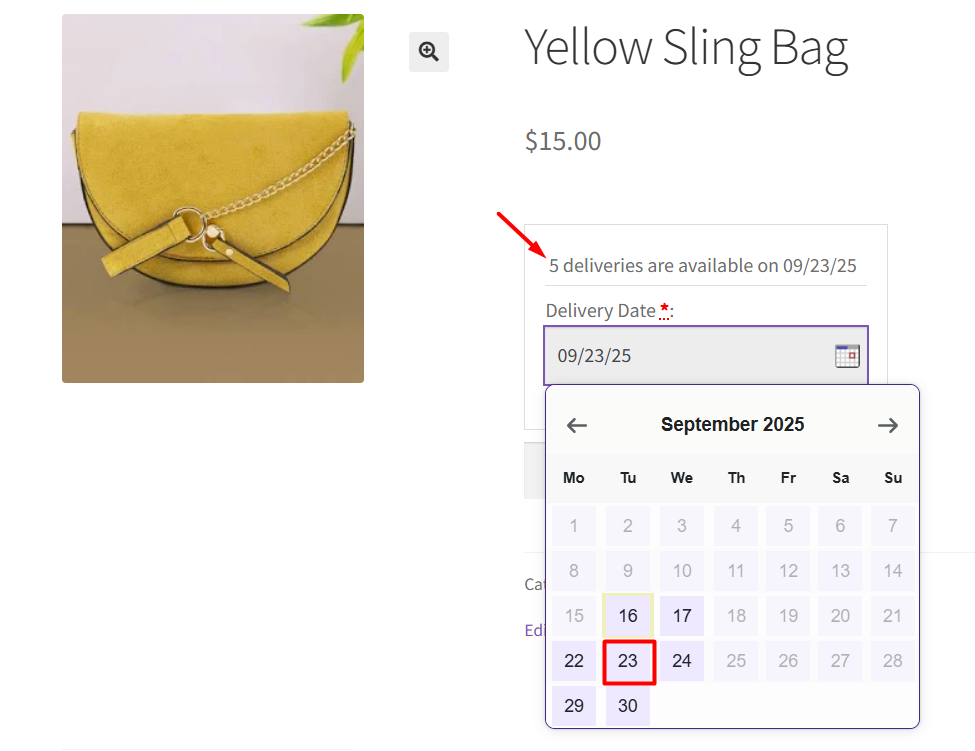
For Wednesday, since no individual limit is set, the page will display the global Maximum delivery limit of 15, which will also update automatically as orders come in.
Lockout behaviour:
When the number of orders for that weekday reaches its limit, that weekday/date will be shown as unavailable on the calendar for any new customers.
Specific Dates
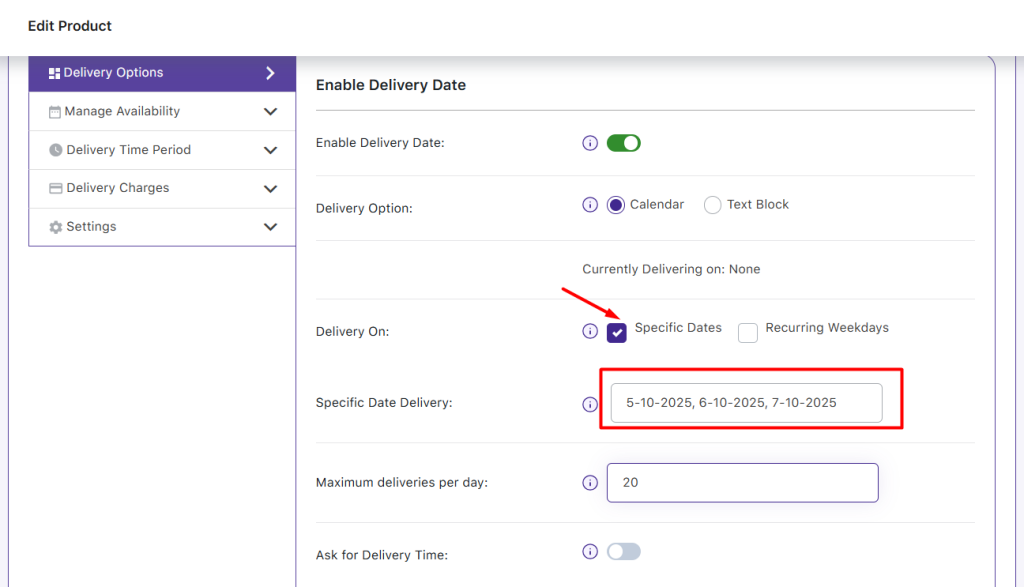
Let’s say you run an online store selling Autumn Decor Items like small pumpkins, wreaths, or table centerpieces. These items are only available for delivery on specific dates in October. First, you can set a global Maximum Deliveries per Day in the Delivery Options tab, which acts as a fallback limit for any date that doesn’t have its own maximum. Let’s set this global maximum to 20 deliveries per day.
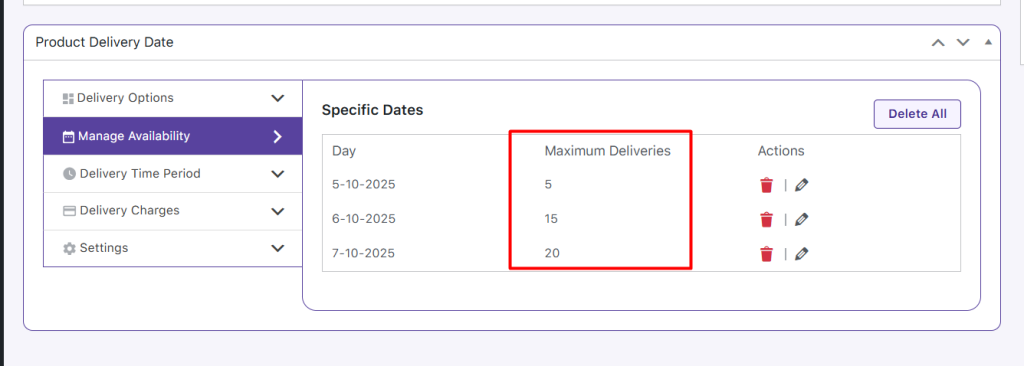
Next, in the Manage Availability tab, you can set individual maximum deliveries for each specific date. For example, you may set:
- October 5: 5 deliveries
- October 6: 10 deliveries
- October 7: leave blank (so it uses the global fallback of 20 deliveries)
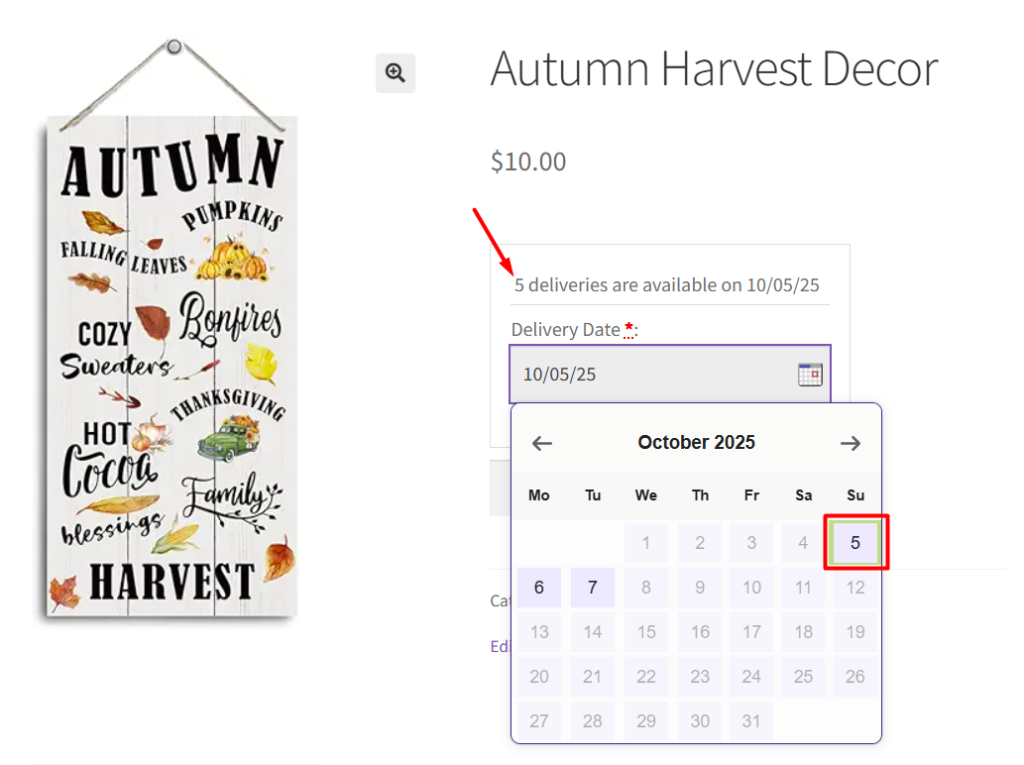
When a customer selects October 5 as the delivery date, the product page will show that 5 deliveries are available. As orders are placed, this number will automatically decrease, for instance, after one order, the availability updates to 4.
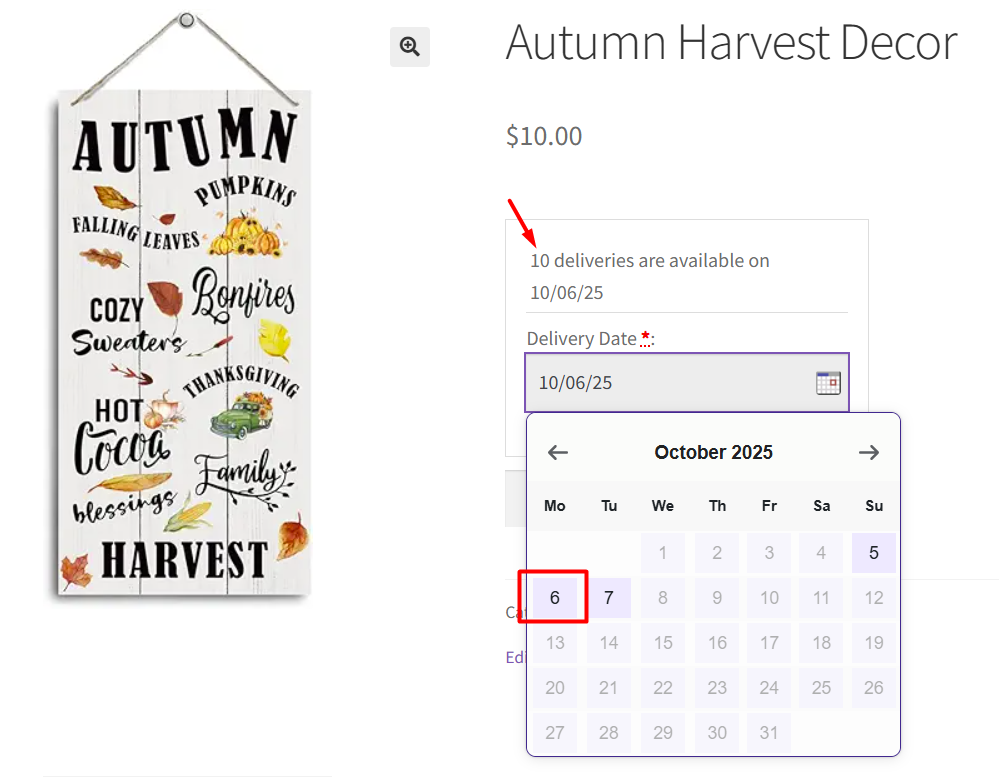
Similarly, selecting October 6 will show 10 deliveries, which decreases as orders come in.
For October 7, since no individual maximum is set, the page will display the global fallback of 20 deliveries, which will also update automatically as orders are placed.
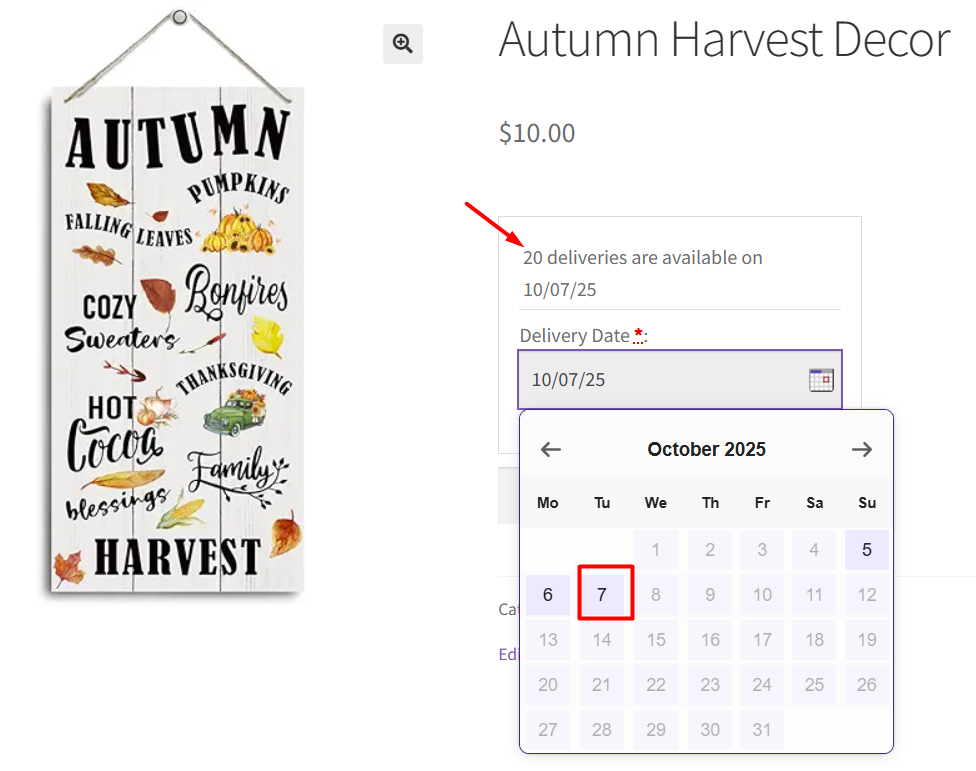
Lockout behaviour:
When the number of orders for a specific date reaches its limit, that date will be automatically disabled on the calendar for new customers, preventing overbooking.
Time Slots
You’re already familiar with setting time slots for product deliveries. Now you can also add a maximum delivery limit per slot alongside the daily limit.
Let’s take an example of an online Cake Shop that delivers Blueberry Cheesecake at different times of the day. In the Time Slots Availability tab, you can set the following:
- 10:00 – 11:00: 5 deliveries
- 11:00 – 12:00: 8 deliveries
- 14:00 – 16:00: (when left blank, this slot will automatically use the daily or global maximum deliveries).
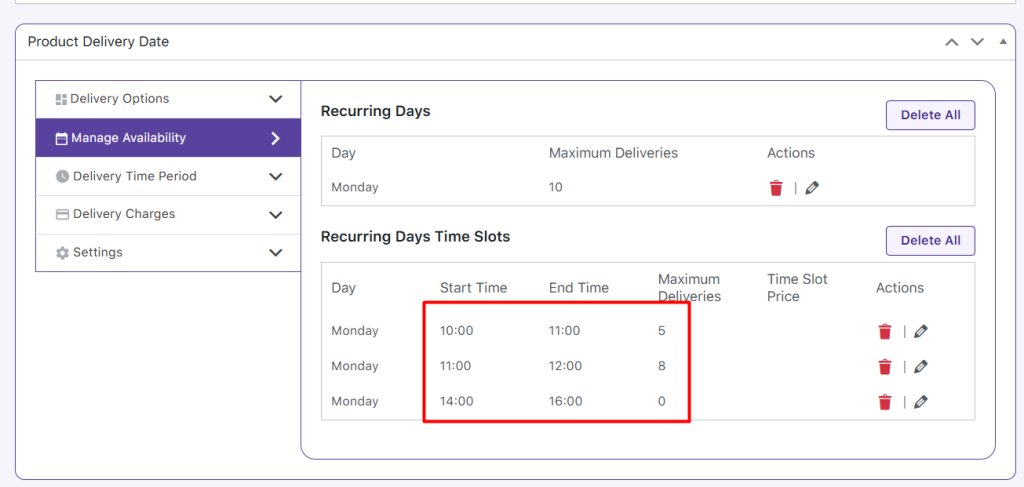
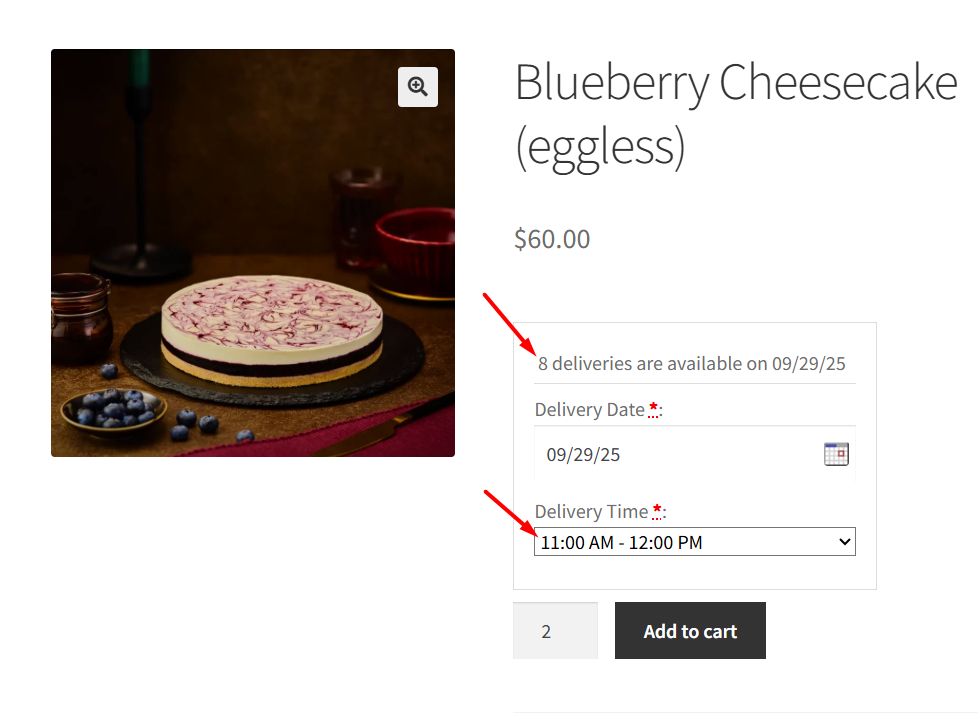
When a customer chooses a time slot, the availability for that slot is displayed. For example, if the limit for 11:00 – 12:00 is 8, and on the product page, when customers select this time slot, they will see 8 available.
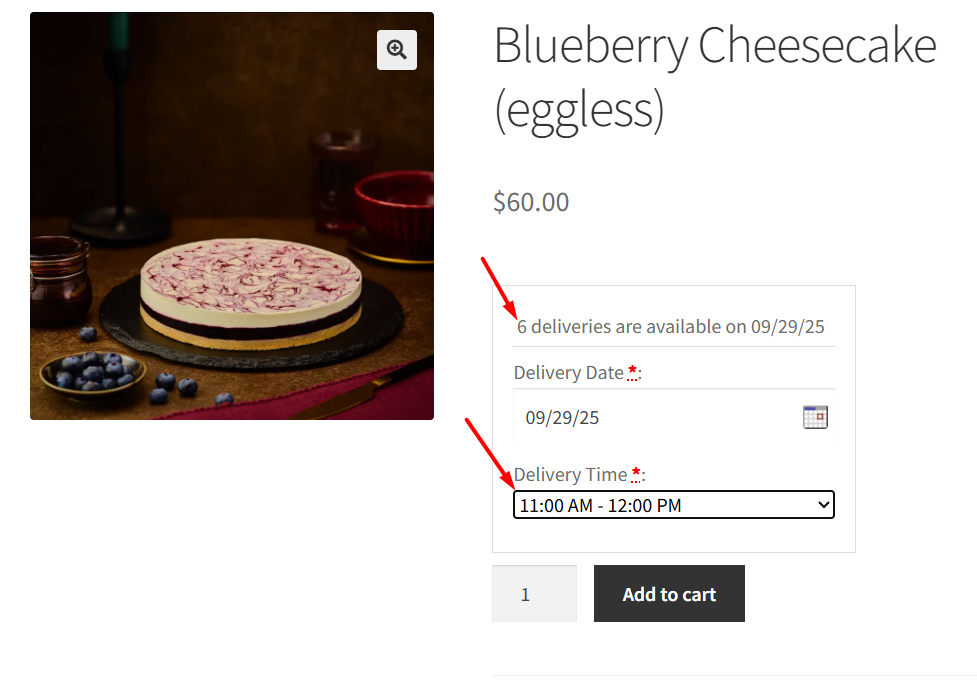
If they place 2 orders of cake in this time slot, the next customer will see 6 available.
Once the maximum deliveries for that time slot are reached, the slot is removed from the calendar.
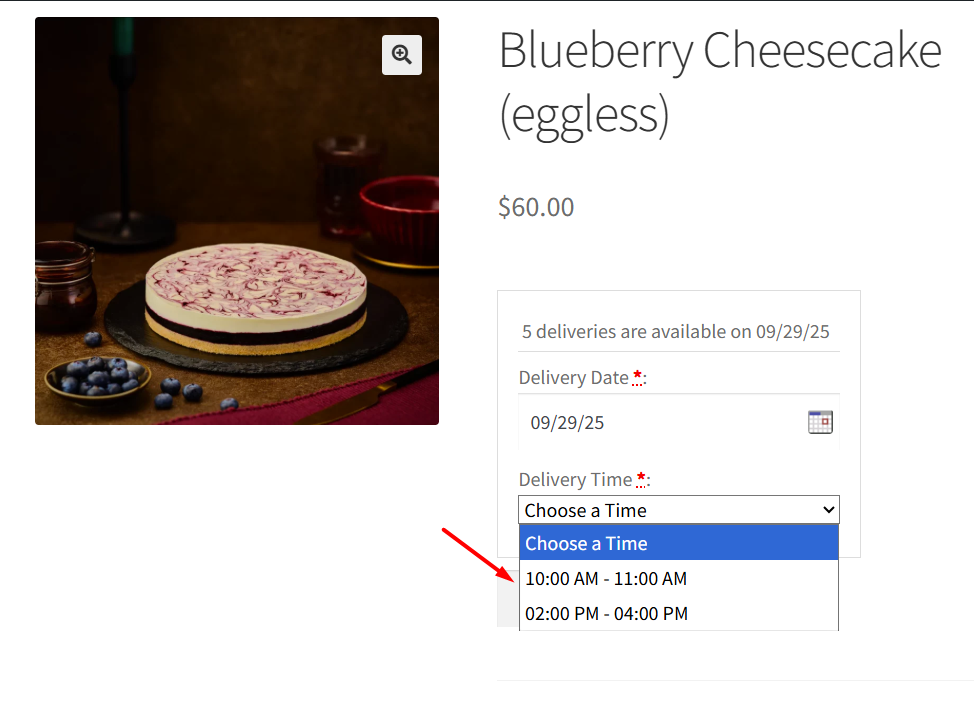
If no limit is set for a slot such as 14:00 – 16:00, the plugin automatically falls back to the daily “Max Deliveries” set for that day, or to the global maximum deliveries if the daily limit is also left blank.
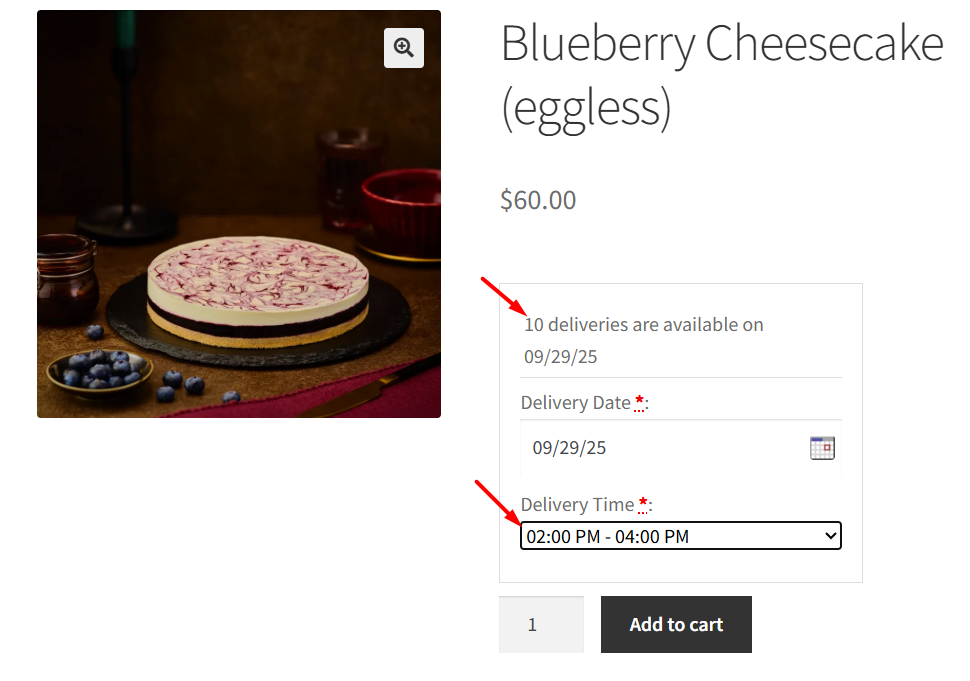
Note: Bulk product setting fallback: If no per-product “Max Deliveries Per Day” is set and the global Delivery Options field is also blank, the plugin falls back to the Maximum Deliveries value set in the bulk product settings (applies to all products).
Conclusion
In this post, we saw how you can set individual maximum deliveries for any recurring weekday, specific date and specific time slot using the new settings in the Product Delivery Date Pro for WooCommerce plugin. This gives you precise control over your delivery capacity and ensures dates or slots automatically lock out when their limits are reached.