


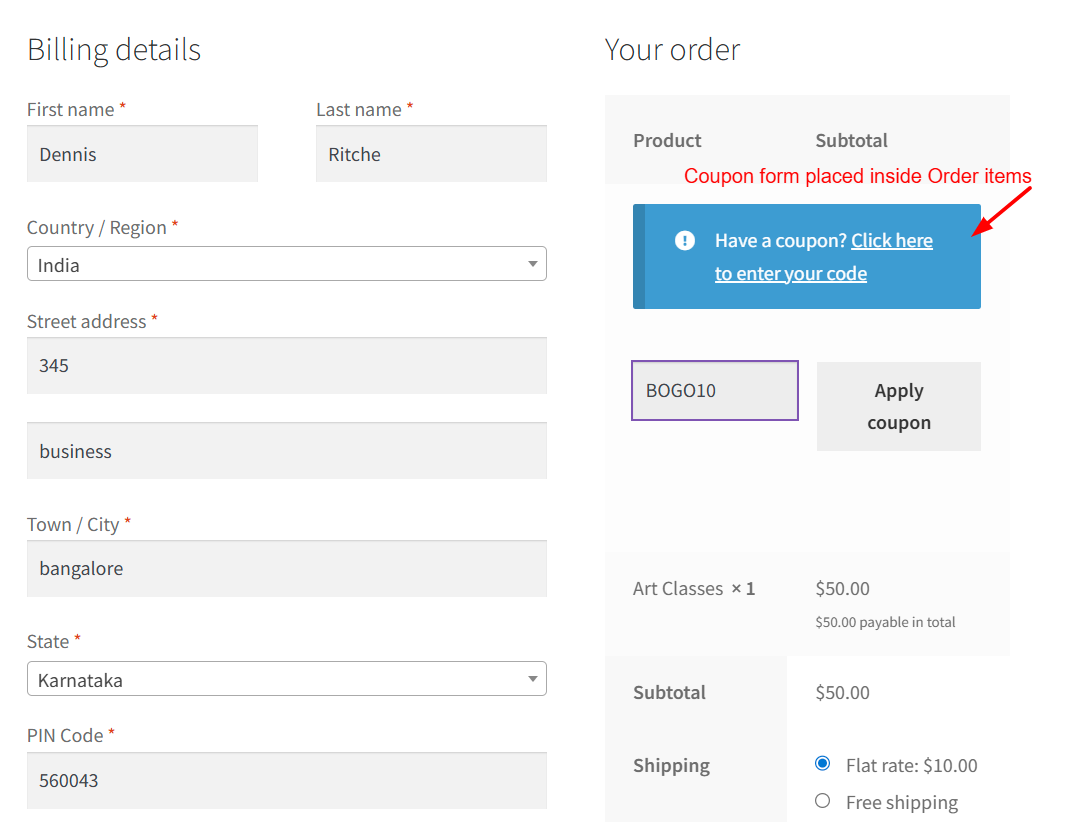
The coupon field is an important part of the checkout experience, but in WooCommerce, the default placement isn’t always ideal. By default, the coupon form appears above the checkout form, which can confuse customers or reduce visibility.
In this guide, we will see how to move the WooCommerce coupon form so it appears inside the Order Items table. WooCommerce doesn’t offer a setting for this—but with a small, safe snippet, you can fully control the placement.
Solution: Move WooCommerce Coupon Form Inside the Order Items Table on the Checkout Page
Placing the coupon form directly inside the Order Review table ensures customers see it at the right moment, when they are reviewing their cart total.
// Add coupon form inside order review table
add_action( 'woocommerce_review_order_before_cart_contents', 'ts_add_coupon_inside_order_table', 5 );
function ts_add_coupon_inside_order_table() {
    if ( wc_coupons_enabled() ) {
        echo '<tr class="woocommerce-coupon-form"><td colspan="2">';
        woocommerce_checkout_coupon_form();
        echo '</td></tr>';
    }
}
By default, WooCommerce displays the coupon form above the entire checkout form, inside a notification-style banner that says “Have a coupon? Click here to enter your code”.
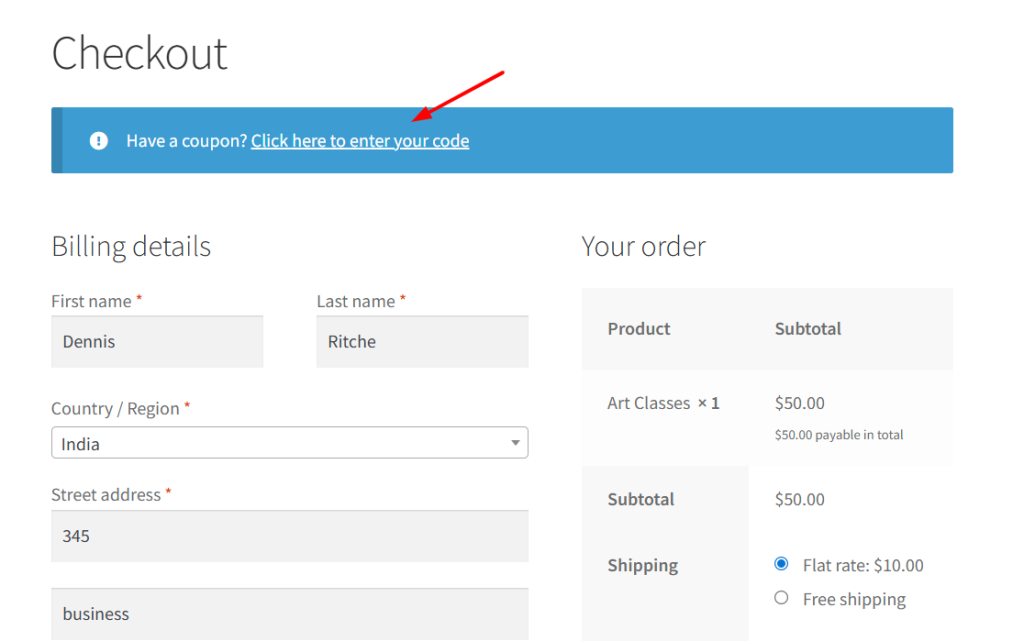
With our custom snippet, the coupon form is now placed inside the Order Review items table, right where customers are reviewing their cart contents.
For stores that need additional flexibility, such as hiding the coupon box once a discount is already applied, we’ve covered that use-case in a separate guide onhow to hide the WooCommerce coupon field after a coupon is applied.
