


With WooCommerce 7.5+ and the introduction of HPOS (High-Performance Order Storage), order data is stored in dedicated database tables for better performance and scalability. However, during or after migration, it’s possible for legacy order IDs (from the wp_posts table) and HPOS order IDs (from the wc_orders table) to become misaligned.
For store managers who need to audit or debug migrated orders, it’s helpful to verify that both legacy and HPOS order IDs are matching on the WooCommerce admin dashboard.
Solution: Verify HPOS and Legacy Order ID Matching in WooCommerce Admin
This code snippet checks whether HPOS is enabled, compares legacy and HPOS order IDs, and displays an admin notice indicating whether all IDs match correctly. If mismatches are found, it highlights them directly in the WordPress admin dashboard.
add_action( 'admin_notices', function() {
    global $wpdb;

    // HPOS check
    if ( ! class_exists( 'Automattic\WooCommerce\Internal\DataStores\Orders\CustomOrdersTableController' ) ) {
        return;
    }

    $controller = wc_get_container()->get( Automattic\WooCommerce\Internal\DataStores\Orders\CustomOrdersTableController::class );

    if ( ! $controller->custom_orders_table_usage_is_enabled() ) {
        return; // Exit if HPOS not enabled
    }

    // Query the latest 100 legacy orders with their HPOS mapping
    $results = $wpdb->get_results("
        SELECT p.ID AS legacy_id, o.id AS hpos_id
        FROM {$wpdb->prefix}posts p
        LEFT JOIN {$wpdb->prefix}wc_orders o ON o.parent_order_id = p.ID
        WHERE p.post_type = 'shop_order'
        ORDER BY p.ID DESC
        LIMIT 100
    ");

    $mismatched = array();

    foreach ( $results as $row ) {
        if ( ! $row->hpos_id || $row->hpos_id != $row->legacy_id ) {
            $mismatched[] = $row;
        }
    }

    // Display admin notice
    if ( ! empty( $mismatched ) ) {
        echo '<div class="notice notice-warning is-dismissible">';
        echo '<h3>⚠️ HPOS / Legacy Order Mismatches (Latest 100 Orders)</h3><ul>';
        foreach ( $mismatched as $row ) {
            $status = ! $row->hpos_id ? 'Missing HPOS Entry' : 'Mismatched (IDs are different)';
            $hpos_display = ! $row->hpos_id ? '<span style="color: red;">MISSING</span>' : '<span style="color: orange;">' . esc_html( $row->hpos_id ) . '</span>';
            printf(
                '<li>Legacy ID: <code>%d</code> → HPOS ID: %s (%s)</li>',
                $row->legacy_id,
                $hpos_display,
                $status
            );
        }
        echo '</ul></div>';
    } else {
        echo '<div class="notice notice-success is-dismissible">';
        echo '<p>✅ All latest 100 orders have matching HPOS Order IDs.</p>';
        echo '</div>';
    }
});
Output
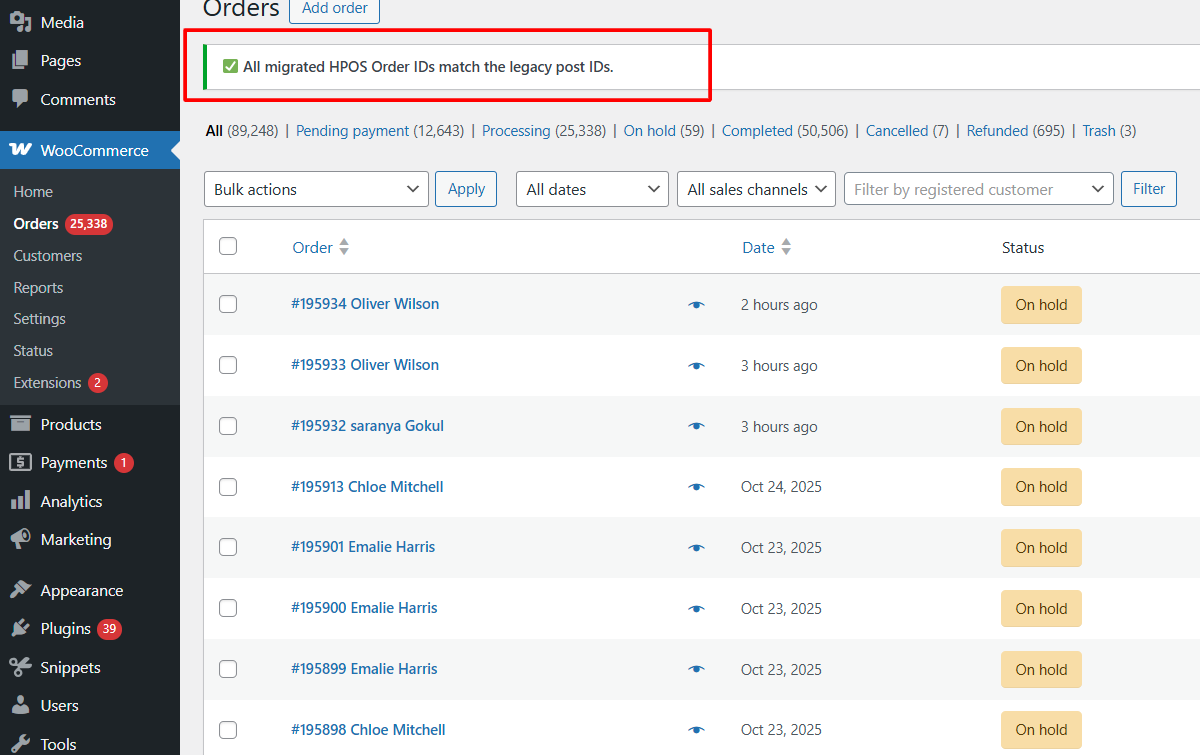
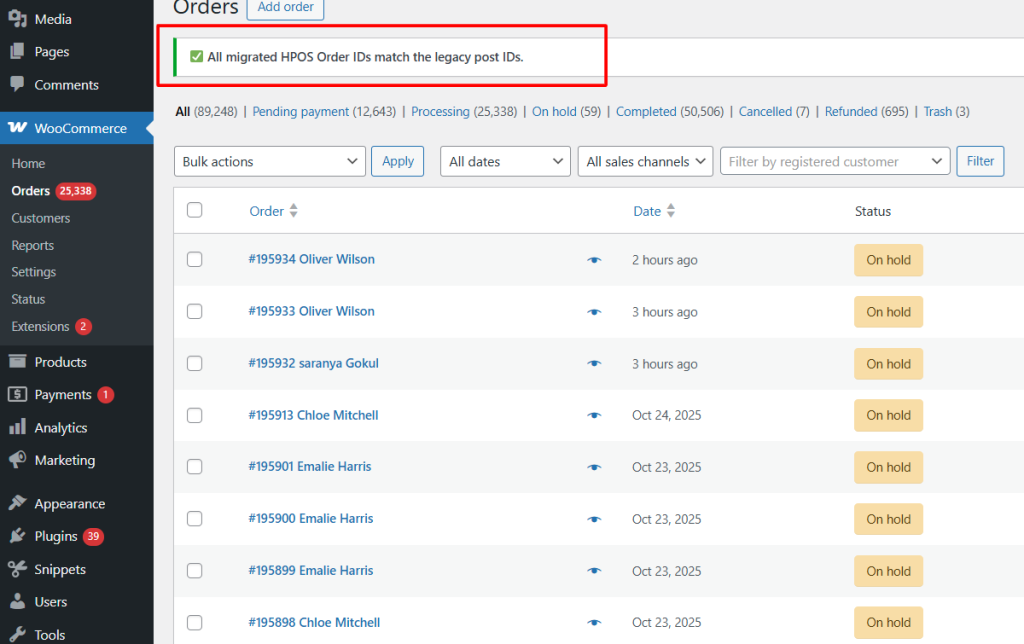
When you visit the Orders page, you’ll see a success message if your latest orders’ HPOS and old order IDs match.
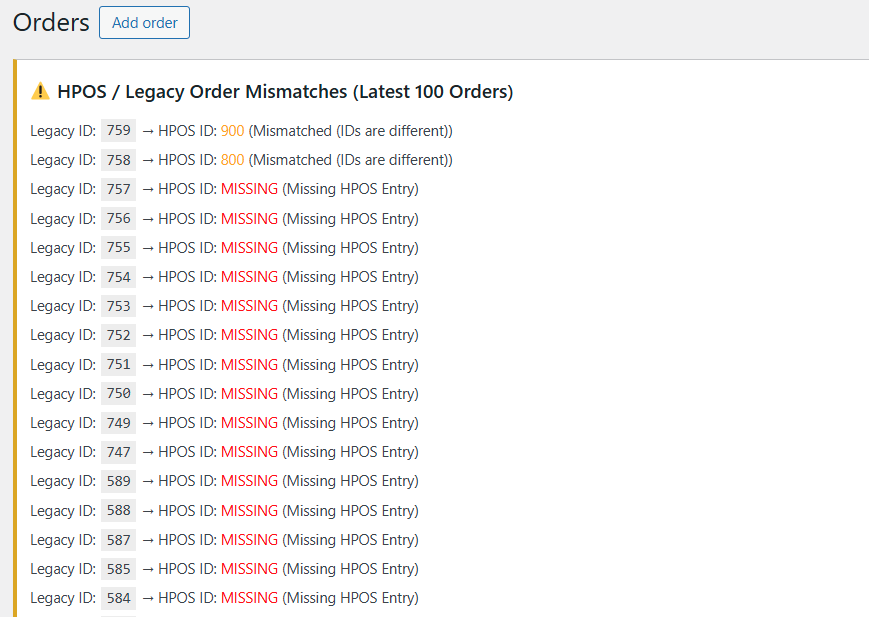
If mismatches are found, it will list the mismatched order IDs directly in the WordPress admin dashboard.
Before verifying that your legacy and HPOS order IDs match, it’s a good idea to first confirm whether HPOS is enabled on your site. You can do this quickly by following our guide on how to programmatically check if HPOS is enabled in your WooCommerce site.

So then what do you do to get the orders to sync correctly once you have determined that they are not in sync
Hi Phil,
That’s a good question! This article intentionally focuses on identifying whether legacy and HPOS order IDs are out of sync, as detection is the first step. How those mismatches are resolved depends on the underlying cause.
Once a mismatch is detected, WooCommerce recommends enabling Compatibility Mode, which synchronizes orders between the posts table and the HPOS tables. This is the officially supported way to bring both tables back in sync.
You can find the exact steps and explanation in WooCommerce’s developer documentation here:
https://developer.woocommerce.com/docs/features/high-performance-order-storage/enable-hpos/
So yes I have done that and also re synced a number of times. Each time the orders are not in correct sync.There seems to be no info I can find that will fix this problem.
Hi Phil,
Running the sync should usually fix the problem, but if the orders are still not lining up, then the mismatch is likely caused by something else.
At that point, it’s best to check how those orders were created — for example, if any plugins or custom code were involved.
There isn’t a single one-click fix for every scenario once the data is out of sync, since it depends on how the inconsistencies happened.