


If your WooCommerce order numbers are not sequential, skipping numbers or jumping unexpectedly, you’re not alone. Many store owners notice gaps in order numbers and assume something is broken or misconfigured, and wonder why does WooCommerce skips order numbers.
In reality, this behavior is normal in WooCommerce. Order numbers are generated using WordPress’s internal system, which means numbers can be skipped for several legitimate reasons, even when no orders are missing.
In this article, we’ll explain why WooCommerce order numbers are not sequential, what causes order numbers to get skipped, and whether this is something you should be concerned about. We’ll also cover what options you have if your business requires clean, sequential order numbers for accounting, invoicing, or compliance.
Why Are WooCommerce Order Numbers Not Sequential?
WooCommerce does not generate order numbers as a clean, continuous sequence by default. Instead, it uses the WordPress post ID system to assign an ID to each order.
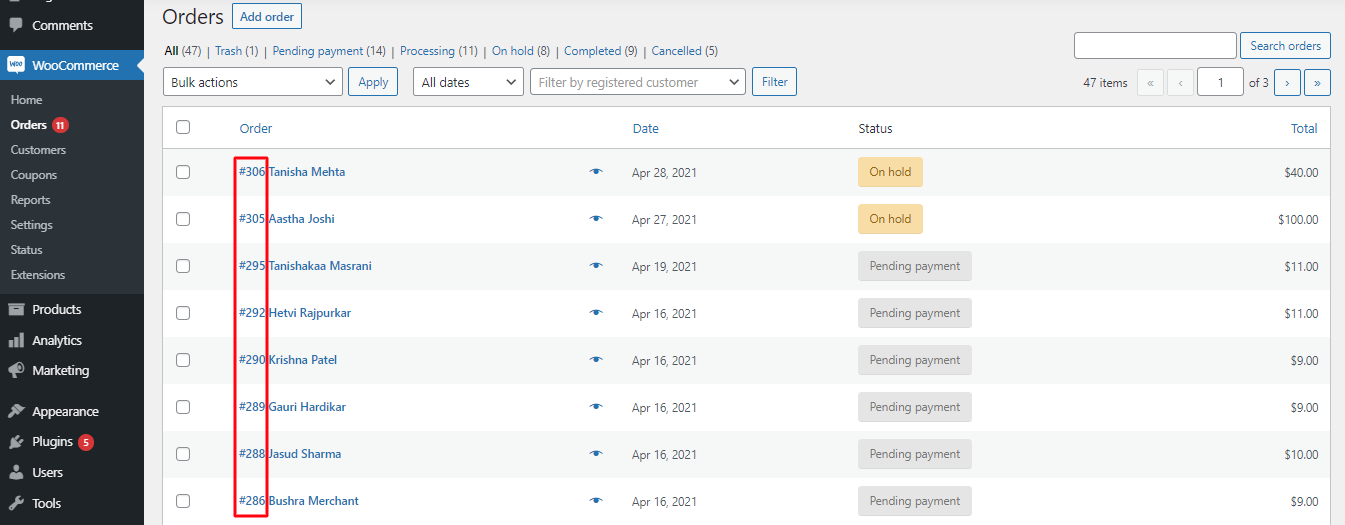
WooCommerce Order Numbers
In WordPress, every piece of content, including posts, pages, products, media files, and orders, is stored as a “post” in the database. Each of these items is assigned a unique ID as it is created. Since this ID sequence is shared across multiple content types, order numbers are not reserved exclusively for orders.
As a result, WooCommerce order numbers can appear to jump or skip. For example, if a product, page, or media file is created between two orders, that ID is still used, causing a gap in the order number sequence.
In a nutshell, WooCommerce order numbers are not designed to be sequential. What you see as an “order number” is actually a reflection of WordPress’s global ID system, not a dedicated order counter.
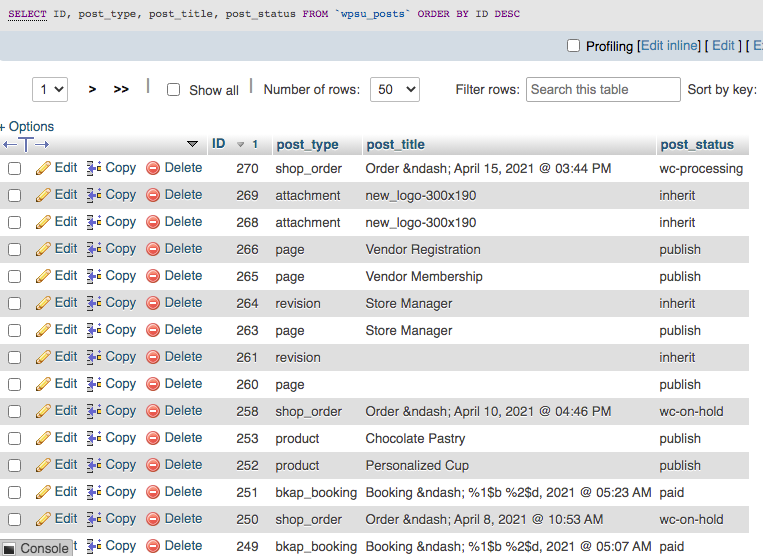
An example of the wp_posts table
Why Does WooCommerce Skip Order Numbers?
Now that you know why WooCommerce order numbers aren’t designed to be sequential, the next question is usually more specific: why are certain numbers missing altogether?
These gaps occur when order numbers are generated but never completed or retained, and this can happen for several normal reasons as follows-
1. Failed or Abandoned Checkouts
When a customer starts the checkout process but does not complete the purchase, WooCommerce may still generate an order record internally. Even though the order is never completed, the order number has already been used — resulting in a gap.
2. Deleted or Cancelled Orders
If an order is created and later deleted from the admin dashboard, its order number is not reused. WooCommerce does not recycle order numbers once they’ve been assigned.
3. Auto-Draft Orders Created by WooCommerce
WooCommerce sometimes creates temporary or auto-draft orders during background processes. If these drafts are removed or never completed, the associated order numbers remain skipped.
4. System Processes and Extensions
Other plugins, payment gateways, or background tasks can trigger order creation for validation or testing purposes. These processes may consume order numbers even if the order never becomes visible to customers.
In WooCommerce, what most store owners refer to as an “order number” is actually an order ID used internally by WordPress. This ID exists to uniquely identify records in the database, not to provide a human-friendly, sequential count of orders.
If your WooCommerce order numbers are not sequential or appear to jump, it doesn’t mean orders are missing or broken. It simply reflects how WooCommerce manages data behind the scenes. Consider it as a side effect of how WooCommerce and WordPress work together.
Can You Make WooCommerce Order Numbers Sequential?
By default, WooCommerce does not offer a built-in option to generate strictly sequential order numbers. This is because order numbers are tied to WordPress’s internal ID system, which is shared across multiple types of content.
For this reason:
- You cannot safely change or reset the internal order ID
- WooCommerce does not reuse skipped numbers
- There is no native setting to enforce a continuous sequence
Trying to modify the core order ID can lead to data conflicts, broken references, and issues with reporting or integrations.
What can be customized safely
While the internal order ID should not be altered, WooCommerce does allow you to customize the displayed order number, or say you can use custom order numbers. This means you can:
- Show a sequential number to customers and staff
- Add prefixes or suffixes
- Use a separate numbering format without affecting core data
This approach keeps WooCommerce stable while giving you the clean, predictable order numbers some businesses require. Use custom order numbers to achieve the same practical result, safely.
How to Use Custom Order Numbers Without Breaking WooCommerce
If your business requires clean, sequential order numbers, the safest approach is to leave WooCommerce’s internal order IDs untouched and use a custom order number layer instead.
Custom order numbers work by:
- Generating a separate, human-friendly order number
- Displaying that number to customers, admins, and in emails
- Keeping WooCommerce’s core database IDs intact
This ensures compatibility with:
- Payments and refunds
- Reports and analytics
- Third-party integrations and extensions
What custom order numbers typically allow
With the right solution in place, you can:
- Display strictly sequential order numbers
- Add prefixes or suffixes to order numbers (for example, based on year or store)
- Control the starting number for new orders
- Maintain a consistent format across invoices and emails
- Reset custom order numbers after a certain period of time
For store owners who need this level of control, plugins like Custom Order Numbers for WooCommerce provide a safe way to customize order numbering without modifying core WooCommerce behavior.
If sequential order numbers are important for your business, use a customization layer, not core edits, to achieve it safely.
Conclusion
We hope that this post helps you understand why does WooCommerce skip order numbers and how to fix it in a natural way using the custom order numbers. Since there is no in built way in WooCommerce to create and manage custom order numbers, you can use plugins like the Custom Order Numbers for WooCommerce and implement the solution effortlessly.
