


Making WooCommerce Checkout Fields Required or Optional in WooCommerce is a common customization store owners need when the default checkout setup doesn’t match their business requirements.
For example, you may want to:
- Make the phone number optional to reduce checkout friction
- Force the company name as required for B2B orders
- Adjust required fields based on your audience or region
By default, WooCommerce decides which checkout fields are mandatory. But with a small code change, you can easily make any billing or shipping field required or optional—without editing core files. This post explains how you can modify the fields & make fields required or optional on the WooCommerce Checkout page.
Where to Add This Code Safely
The recommended ways to add checkout field customization code are:
- Your child theme’s
functions.phpfile - The Code Snippets plugin (safer for non-developers)
Avoid editing WooCommerce core files, as updates will overwrite your changes.
Example 1: Making the Phone field optional
In the latest versions of WooCommerce, the Phone field (under Billing Details) is a required field by default when you are on the Checkout page.
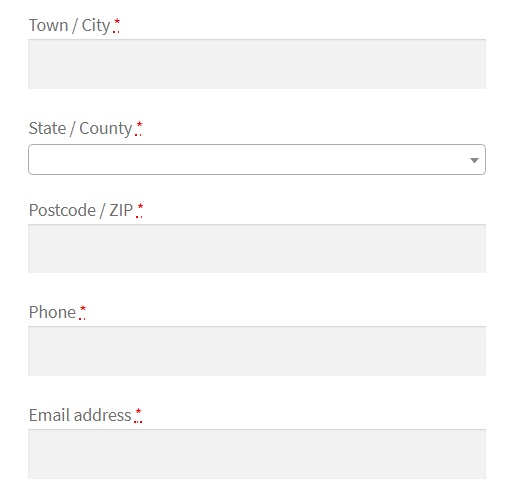
What if you want to make this field optional for cases where it isn’t necessary and where customers too do not wish to disclose this information?
The code snippet below enables you to do the same:
add_filter( 'woocommerce_billing_fields', 'ts_unrequire_wc_phone_field');
function ts_unrequire_wc_phone_field( $fields ) {
$fields['billing_phone']['required'] = false;
return $fields;
}
The first line here declares a function named as “ts_unrequire_wc_phone_field”. You can name your function anything you want.
‘billing_phone’ refers to the name of the Phone field that we want to make optional.
Inside the function, $fields[‘billing_phone’][‘required’] is assigned a “false” value implying that the field is not required or is optional.
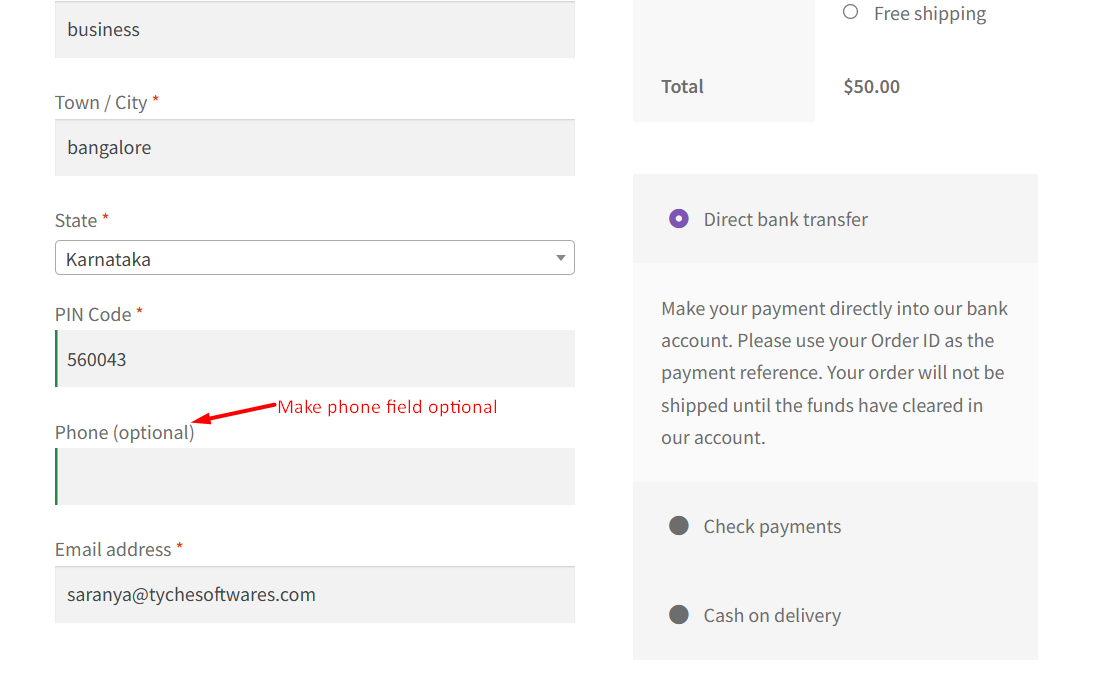
Adding the lines above to your child theme‘s function.php file will make the Phone field optional on the Checkout page, as depicted in the image below.

There you go! The Phone field is now optional.

This to the shop owners who are running or planning to run BOGO offers on their WooCommerce store…
BOGO deals are great for increasing your sales, but have you thought about which offers are bringing you more revenue and which offers are not performing that great?
Don’t just set a BOGO deal, track the revenue generated by your deals in real-time with the Flexi BOGO for WooCommerce plugin.
Example 2: Making the Company Name field required
On the Checkout page, we see that the company name field is optional by default:

There are many cases where you may want the Company Name to be a compulsory field. For example, sale of tickets to a corporate conference or seminar, or the purchase of a corporate license for a product. In this case, the same code snippet may be used with a few modifications to make the Company Name field a required field.
add_filter( 'woocommerce_billing_fields', 'ts_require_wc_company_field');
function ts_require_wc_company_field( $fields ) {
$fields['billing_company']['required'] = true;
return $fields;
}
Here, assigning a value of “true” to $fields[‘billing_company’][‘required’] does the job.
The result is that the company name field becomes a required field:

Below are the HTML names of all the fields on the Checkout page. The names are indicative of which field they correspond to. You can refer to the snippets above to change any of these fields into an optional or a required field, depending on the use case.
Billing Fields
- billing_first_name
- billing_last_name
- billing_company
- billing_country
- billing_address_1
- billing_address_2
- billing_city
- billing_state
- billing_postcode
- billing_phone
- billing_email
Shipping Fields
- shipping_first_name
- shipping_last_name
- shipping_company
- shipping_country
- shipping_address_1
- shipping_address_2
- shipping_city
- shipping_state
- shipping_postcode
Order Fields
- order_comments
With just a few lines of code, you can change any field on your Checkout page into an optional or a mandatory field.
If your requirements go beyond simply toggling field validation and you’d like to reorder fields, add new checkout fields, or apply conditional logic, WooCommerce checkout hooks are the right tool for the job. We’ve put together a visual, developer-friendly guide that explains where and how each WooCommerce checkout hook fires, along with practical code examples.

Hi, how can you change when you just want to select specific country selected to change it to be mandatory. Like if selected country and state is not mandatory.
Thanks
Hi,
For this specific case, please refer to the code snippet in this article: https://www.tychesoftwares.com/make-fields-optional-in-woocommerce-depending-on-the-country-or-state-selected/
Really helpful
Thank you!
Where do I add this code to? I’m a total beginner.
the functions.php file, if you don’t have one, make it inside the root of your theme directory
Hi, you can add it to the functions.php file as suggested in these comments, but it is preferable to add it to the functions.php file of the child theme. If you have not created a child theme already, I would recommend it. You may refer to point 3 of this article for the same: https://www.tychesoftwares.com/5-ways-to-safely-add-custom-code-to-wordpress-sites/
Hi, thank you very much it’s working and I don’t have to use another plugins to do so …
Most welcome.
Hi,
Really helpful article. I added a couple extensions to WordPress and suddenly all my checkout fields are showing as option.
Is it necessary to add the snipets through a child theme though? Can it be done through one of the other means you mentioned: Using a Plugin, oe Creating a Custom Plugin? I’m out of my depth creating child themes.
Thanks
Yes, you can use any of these methods to add the snippet: https://www.tychesoftwares.com/5-ways-to-safely-add-custom-code-to-wordpress-sites/